

Introduction: Understanding Webroot Uninstallation
Trying to uninstall Webroot shouldn’t feel like defusing a bomb — yet for countless users, it does. Whether you’re switching security software, troubleshooting conflicts, or simply cleaning up your system, Webroot’s self-protection features can make removal surprisingly stubborn on both Windows and Mac.
And yes, is it safe to uninstall Webroot?? Absolutely — as long as you replace it with reliable protection afterward.
The complete removal process involves more than clicking “uninstall.” Permission errors, leftover files, and locked processes trip up even experienced users. Before diving into the steps, proper preparation makes all the difference.
Step 1: Preparing for Webroot Uninstallation
Before you remove Webroot from any device, a little preparation goes a long way toward avoiding headaches. Rushing straight into removal is one of the most common mistakes users make — and it’s exactly why so many end up frustrated midway through the process.
Here’s what to do first:
- Deactivate Webroot’s self-protection — Webroot includes a built-in shield that actively blocks tampering, including removal attempts
- Note your keycode — you may need it if reinstalling another security tool
- Close all running applications — background programs can interfere with uninstallation
- Ensure administrator privileges — without proper permissions, the uninstall process will stall
Whether you need to uninstall Webroot on PC, Mac, Android, or iOS, the preparation steps share a common thread: confirm you have full system access before proceeding. According to Webroot’s own support documentation, disabling self-protection before uninstalling is a critical step that’s frequently skipped.
Skipping preparation is a major reason Webroot removal fails — a few minutes upfront saves hours of troubleshooting later.
If you’ve previously removed similar security software, you already know the drill — the process shares parallels with other endpoint protection tools. With preparation complete, you’re ready to tackle the actual removal steps on Windows.
Step 2: Uninstalling Webroot on Windows
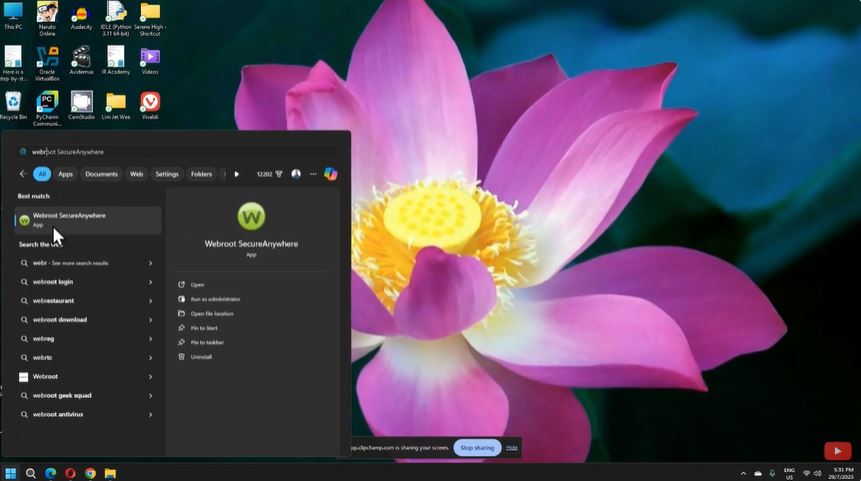
A standard Webroot uninstall on Windows is straightforward — when it works. Start by opening Settings > Apps > Installed Apps, locate Webroot SecureAnywhere, and select Uninstall. Follow the on-screen prompts to complete removal.
What typically happens, however, is that Webroot’s self-protection features block the process partway through. According to Webroot’s official guidance, disabling the self-protection setting inside the Webroot interface before initiating removal significantly reduces these conflicts.
Pro tip: Always reboot after uninstalling — residual background services can linger until a full system restart clears them.
If the standard method fails, Safe Mode may be your next best move.
Using Safe Mode for Stubborn Installations
When a standard Webroot SecureAnywhere uninstall fails — buttons grayed out, errors on repeat, or the program simply refusing to close — Safe Mode is your most reliable next move. Safe Mode boots Windows with only essential system processes running, which means Webroot’s self-protection mechanisms can’t actively block the removal.
Here’s how to use it effectively:
- Restart into Safe Mode: Hold Shift while clicking Restart, then navigate to Troubleshoot > Advanced Options > Startup Settings > Restart, and press 4
- Open Programs & Features and attempt the uninstall again
- Run the WSAB Removal Tool if the standard uninstall still stalls — Webroot’s own community forums at Spiceworks confirm this tool resolves most persistent cases
In practice, Safe Mode succeeds where normal uninstalls don’t because competing processes simply aren’t running to interfere. Once removal completes, restart normally and verify no Webroot folders remain in Program Files.
Mac users face a different set of challenges — and a slightly different removal process entirely.
Step 3: Uninstalling Webroot on Mac
Mac users will find Webroot removal a slightly different experience compared to Windows — but it’s just as manageable when you follow the right steps.
According to Webroot’s official Mac uninstall guide, the recommended process is:
- Open the Webroot SecureAnywhere application
- Click the gear icon in the top-right corner
- Select Uninstall SecureAnywhere
- Enter your admin password when prompted
- Confirm removal and restart your Mac
Encountering a stubborn installation? If the app won’t open or the uninstall option is grayed out, users on Apple’s Support Community report success by manually deleting the application from the Applications folder, then clearing remaining files from ~/Library/Application Support/. A restart typically completes the cleanup.
Proper Webroot removal on Mac means checking Library folders — skipping this step often leaves behind residual files that quietly consume system resources.
For a more detailed walkthrough of the full removal process, including file path specifics, dedicated guides can save significant troubleshooting time.
Mobile devices present their own unique removal challenges — and we’ll tackle those next.
Step 4: Removing Webroot from Mobile Devices
Mobile removal is refreshingly straightforward compared to the desktop process — no admin permissions, no Safe Mode gymnastics. Whether you’re on Android or iOS, the standard app removal process handles Webroot cleanly.
On Android:
- Long-press the Webroot app icon
- Select Uninstall from the menu
- Confirm when prompted
On iOS:
- Long-press the app until icons wiggle
- Tap the minus (–) symbol
- Select Delete App
Unlike uninstall Webroot Windows scenarios, mobile versions don’t embed deeply into system files — so leftover data is rarely a concern. After removal, check your device’s storage settings to confirm the app no longer appears.
Even smooth removals occasionally hit unexpected snags, though — and the next section tackles exactly those situations head-on.
Troubleshooting Common Uninstallation Issues
Even after following the steps for Windows, Mac, and mobile removal, things don’t always go smoothly. When you uninstall Webroot Mac or PC versions, a handful of stubborn issues tend to surface repeatedly.
Most common roadblocks include:
- Password prompts that loop — try entering your keycode instead of a login password
- Greyed-out uninstall buttons — indicates active protection mode is blocking removal
- Leftover files after uninstall — manually check Application Support folders
For persistent cases, the Webroot removal tool discussed in community forums can clear deeply embedded files that standard uninstallers miss. Similarly, the OpenText Cybersecurity Community documents several edge cases worth reviewing if standard methods fail.
A clean removal means verifying no background services remain running after the process completes — don’t skip this final checkpoint.
Wondering whether removing Webroot actually leaves your device exposed? That’s the next critical question to address.
Is It Safe to Uninstall Webroot?
Short answer: yes, it’s completely safe — but timing and preparation matter. Removing any security software leaves your system temporarily unprotected, so the key is having a replacement ready before you uninstall Webroot (Mac or PC).
A common pattern is to queue up your new security tool’s installer before beginning removal. That way, your exposure window stays minimal. Think of it like changing a deadbolt — you don’t remove the old lock until the new one is in hand.
One important caveat: uninstalling doesn’t mean you’re abandoning protection permanently. It simply means transitioning responsibly. With the steps covered throughout this guide, you now have everything needed to complete removal cleanly and confidently — which leads naturally into the key takeaways worth remembering.
Key Takeaways
Removing Webroot doesn’t have to be a frustrating ordeal — but it does require the right approach. Here’s a quick summary of what matters most:
- Deactivate your license before uninstalling to avoid losing your subscription
- Use admin privileges on both Windows and Mac to prevent permission errors
- Replace your security software immediately after removal to stay protected
- The Webroot removal tool from OpenText is your best option when standard uninstallation methods fail
In practice, most failed removals trace back to skipped steps — particularly missing the deactivation process or lacking the correct system permissions. A clean uninstall protects both your data and your investment in the software license.
Still dealing with a stubborn installation that refuses to budge? The next section covers forceful removal techniques for exactly those situations.
How to Forcefully Uninstall Webroot?
Sometimes the standard removal process simply doesn’t cooperate. When Webroot’s self-protection features are active, the software actively resists being removed — blocking standard uninstall attempts on both older and newer systems. If you need to uninstall Webroot Windows 11 or Windows 10 the hard way, here’s what typically works:
- Disable self-protection first — Open the Webroot interface, navigate to Settings, and turn off the self-protection toggle before attempting removal.
- Use Safe Mode — Booting into Safe Mode prevents Webroot’s protective processes from loading, making forced removal significantly easier.
- Run the built-in uninstaller with administrator privileges — Right-click the installer and select “Run as Administrator.”
Forced removal without disabling self-protection first is one of the most common reasons uninstalls fail entirely.
If these steps still leave stubborn remnants behind, the next logical move is a dedicated force-uninstall approach — which Windows 10 and 11 offer through specific built-in tools worth exploring in detail.
How to Force Uninstall a Program That Won’t Uninstall in Windows 10?
When standard methods fail, Windows 10 offers several built-in escape routes. Before reaching for a Webroot uninstall tool download, try these targeted approaches:
- Safe Mode removal — Boot into Safe Mode to disable Webroot’s self-protection, then remove it via Settings > Apps
- Windows Installer Cleanup — Use the built-in
msiexeccommand to force-remove stubborn packages - Registry cleanup — After removal, delete leftover keys under
HKEY_LOCAL_MACHINE\SOFTWARE\Webroot - Task Manager — End all Webroot processes before attempting uninstallation
A stuck program isn’t permanent — the right sequence of steps almost always breaks the deadlock. Once the software is fully gone, it’s worth pausing to ask a broader question: was removing it the right call in the first place?
Is It Okay to Uninstall Webroot?
Absolutely — removing Webroot from your system is completely legitimate. Whether you’re switching to another security solution, your subscription has lapsed, or you simply want a fresh start, uninstalling it is a reasonable and safe choice.
The key caveat: always have replacement protection ready before removing any antivirus software. A system running without active protection — even briefly — is vulnerable.
For tech-savvy users managing multiple machines, the uninstall Webroot command line method offers a faster, scriptable alternative to manual removal, making bulk uninstalls far more efficient.
Uninstalling security software responsibly means replacing it immediately — a gap in coverage, however short, is a gap worth avoiding.
Once Webroot is fully removed, the next practical question becomes managing your license itself — which leads naturally into deactivating Webroot on a specific device.
How Do I Deactivate Webroot on One Computer?
Deactivating Webroot on a single machine without fully removing it is a practical middle ground — especially useful when you’re managing a multi-device license. If you can’t uninstall Webroot SecureAnywhere outright due to policy restrictions, deactivation lets you free up a license seat without touching other protected devices.
To deactivate on one computer:
- Open Webroot and navigate to My Account
- Select Deactivate This Device
- Confirm the action when prompted
Deactivation stops active protection and releases the license, while full removal clears all program files. Choose based on whether you plan to reinstall later — across different platforms, that process varies considerably.
How To Uninstall Webroot on PC / Mac / Android / iOS
The removal process varies depending on your device — and knowing the right approach for each platform saves considerable frustration. Uninstall Webroot Windows 10 users typically have the most straightforward path, but every platform has its own quirks worth understanding before you begin.
Here’s a quick-reference breakdown by device:
- Windows: Navigate to Settings → Apps → Apps & Features, locate Webroot SecureAnywhere, and select Uninstall
- Mac: Drag the Webroot application to Trash, then clear associated files from your Library folders
- Android: Go to Settings → Apps, find Webroot, and tap Uninstall — you may need to remove device administrator privileges first
- iOS: Press and hold the Webroot app icon, then select Remove App
One practical note: mobile uninstalls are generally smoother than desktop removals. Desktop environments — particularly Windows — are where permission conflicts and stubborn processes tend to surface most often. Each platform deserves its own step-by-step walkthrough to handle edge cases properly, which is exactly what’s coming next.
How to Uninstall Webroot: Expert Solutions for Windows 7 and Beyond
Even on older operating systems, the removal process follows a reliable pattern. To uninstall Webroot Endpoint Protection on Windows 7, navigate to Control Panel → Programs and Features, locate Webroot in the list, and select Uninstall. When prompted, enter your keycode to authorize removal.
Key steps to verify success:
- CoConfirm no Webroot services appear in Task Manager
- Check that installation folders are fully removed
- Restart your machine to clear residual processes
Stubborn installations may require Safe Mode removal or administrator-level access — both addressed in the next section.
How to Delete Webroot
Deleting Webroot completely means going beyond the standard uninstall — residual files and registry entries can linger if you rely solely on basic removal steps. For the most thorough cleanup, the Webroot cleanup tool is your best option when standard methods leave traces behind.
The core deletion process:
- Open Control Panel → Programs → Uninstall a Program
- Select Webroot SecureAnywhere and click Uninstall
- Enter your uninstall password if prompted
- Restart your system to complete removal
What typically happens after a standard uninstall is that fragmented files remain in hidden directories. Running the cleanup tool afterward ensures those remnants are fully purged. This approach works reliably across Windows 8, 10, and older builds covered in earlier sections.
Windows 11 users, however, encounter a slightly different interface — and that’s exactly what the next section addresses.
How to Remove Webroot from Windows 11
Removing Webroot from Windows 11 follows the same proven path covered throughout this guide — but knowing when to force remove Webroot makes all the difference between a clean system and one still carrying leftover files.
Key takeaways from this complete guide:
- Always use your keycode to deactivate before uninstalling
- Standard Control Panel removal works in most cases
- Use the WRSA uninstall command for stubborn installations
- Delete residual registry entries and folders after removal
- Restart your system to ensure complete cleanup
A clean uninstall protects system performance and prevents conflicts with any security software you install next. Take action today — your computer deserves a fresh start.

4 Comments
vfpylm
ws9kg5
Thank you for another informative web site. The place else may just I get that type of information written in such a perfect manner? I’ve a project that I’m just now running on, and I have been at the look out for such information.
l0p9hq