

How to pause location on Find My is one of the most searched iPhone questions right now. Millions of people look this up every month. And most of the articles they find either give wrong steps or skip the most important details.
This guide is different. It covers every working method, tells you exactly what the other person sees, and explains when to use each one. No wasted time, just the steps you need.
Before anything else, here is the honest answer to the main question. Apple does not have a pause button in Find My. There is no tap that freezes your location for an hour and then brings it back. But there are 5 methods that get you the exact same result. Some of them are so clean that the other person never knows a thing has changed on their screen.
This guide works on iOS 18 and iOS 26.
What Pausing Location Actually Means
Most people think Find My works one way. You share your location, and you turn it off. That is it. But your iPhone actually runs three separate systems at the same time, and each one does something different.
The first system is Share My Location. This is the main switch. When you turn it off, your name disappears from everyone’s Find My list completely.
The second system is Location Services for Find My. This controls whether Find My can access your iPhone GPS. When you disable it, the app cannot get a fresh reading. Your pin freezes at the last spot it recorded.
The third system is your network connection. Find My needs internet to send your location to anyone. No Wi-Fi and no cellular data means no location updates, even if GPS is still running on your phone.
Each method in this guide targets one of these three systems. That is why some methods freeze your pin, and others make it vanish, and why some send no signal at all while others leave a small trace.
There is also something that confuses a lot of people. Find My shows three different messages depending on what happened, and they do not mean the same thing.
| What Shows on Their Screen | What It Actually Means |
|---|---|
| Location Not Available | Share My Location was turned off on purpose |
| No Location Found | Device lost signal, battery died, or iCloud signed out |
| Last seen X minutes ago | Location stopped updating due to Airplane Mode or no internet |
This matters a lot if you want to be discreet. “Location Not Available” tells the other person that something was switched off intentionally. “Last seen X minutes ago” looks exactly like a phone with a bad signal. If you do not want to raise suspicion, you want your situation to look like the second one.
For a full breakdown of how iPhone privacy settings work across all your apps, read our guide on iPhone Privacy Settings You Should Change Right Now.
Can You Actually Pause Location on Find My?
Yes, you can just not with one button.
Apple never added a true pause option to Find My. What you do instead is use built-in settings to stop your location from updating on someone else’s screen. With the right method, the other person cannot tell the difference between you pausing it on purpose and your phone just losing signal.
Here is a quick look at all the methods before you pick one.
| Method | Sends a Notification | What They See | Full Phone Use |
|---|---|---|---|
| Airplane Mode | No | Frozen pin with a timestamp | No calls or internet |
| Second Apple device | No | Live location from the other device | Yes, fully |
| Turn off cellular data for Find My | No | Pin frozen at last spot | Yes, fully |
| Turn off Share My Location | No, but visible if they check | Location Not Available | Yes, fully |
| Stop sharing with one person | No | Your name disappears from their list | Yes, fully |
| Stop sharing inside iMessage | No | Location expires quietly in the chat | Yes, fully |
| Turn off Precise Location | No | Rough area only, no exact spot | Yes, fully |
Why People Want to Do This
The method you choose depends on your reason. Here are the most common situations.
You want privacy from family. Sharing location inside a Family Sharing group can feel like being watched all day. You are not doing anything wrong. You just want to go to a doctor appointment, grab lunch, or run an errand without every movement being recorded. That is a perfectly reasonable thing to want.
You are planning a surprise. This is one of the most common reasons. You are picking up a gift, meeting someone at the airport, or heading to a venue early. A quick freeze buys you the time you need without anyone getting suspicious.
You shared location with someone you are no longer close to. It happens. Location sharing starts casually, and then you realize someone you barely talk to can still see everywhere you go. Removing that quietly is completely fine.
You are worried about personal safety. Apple added a feature called Safety Check in iOS 16 for exactly this reason. It lets you instantly cut off location access for every contact at once, all from one page in Settings. If you are ever in an uncomfortable situation with someone, it is worth knowing this exists. According to Apple’s official Safety Check page, this feature was designed specifically to help people quickly remove access in personal safety situations.
Your battery is draining fast. Find My runs GPS, cellular pings, and background refresh constantly. That combination eats between 5 and 15 percent of your battery every single day. Pausing location genuinely makes a difference, especially overnight.
5 Ways to Pause Location on Find My iPhone
Method 1: Airplane Mode
This is the fastest option and it sends zero notifications. When you turn on Airplane Mode, your phone goes offline. No GPS updates leave your device. The other person sees your pin frozen on the map with a grey note like “last seen 4 minutes ago.” It looks exactly like you walked into a building with no signal.
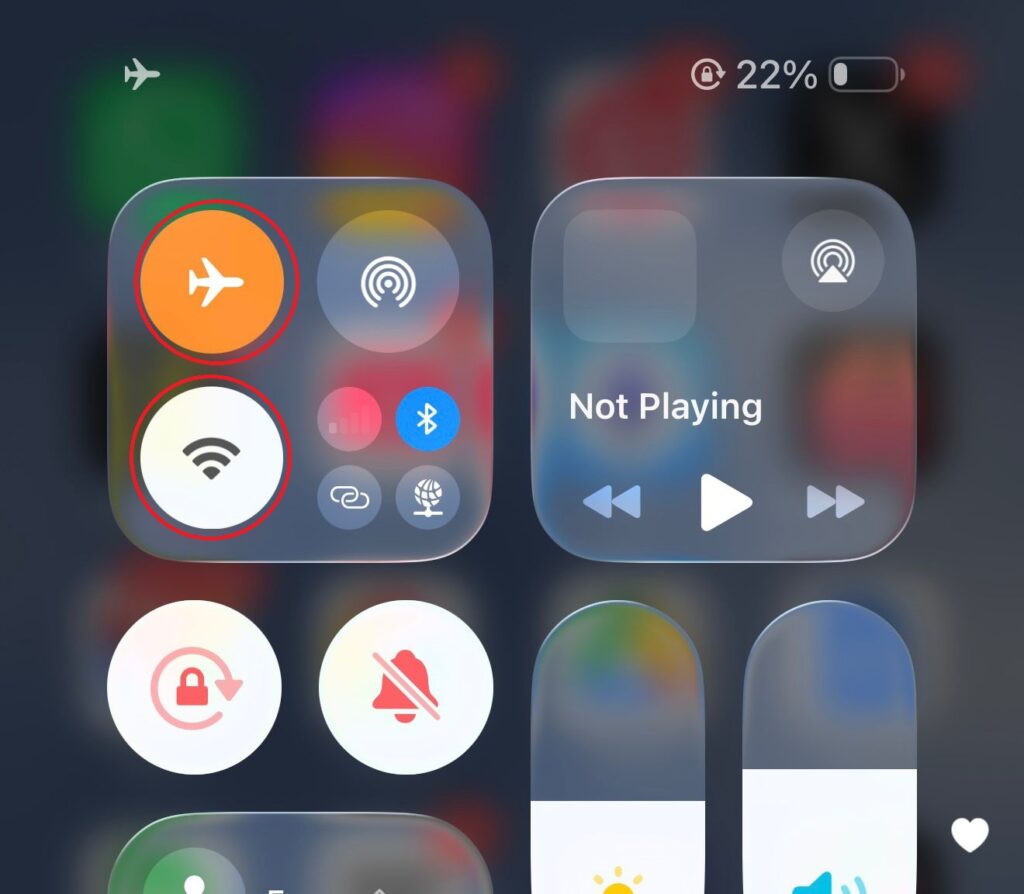
One thing most guides miss: You also need to turn off Wi-Fi. If your phone joins a nearby Wi-Fi network while Airplane Mode is on, Find My will immediately start updating your location again through that connection. Turn both off together.
Good news: your AirPods and other Bluetooth devices still work while Airplane Mode is on. Bluetooth stays active.
On iPhone 16 and all Face ID models (iPhone X, 11, 12, 13, 14, 15, 17):
Step 1: Swipe down from the top right corner of your screen to open Control Center.
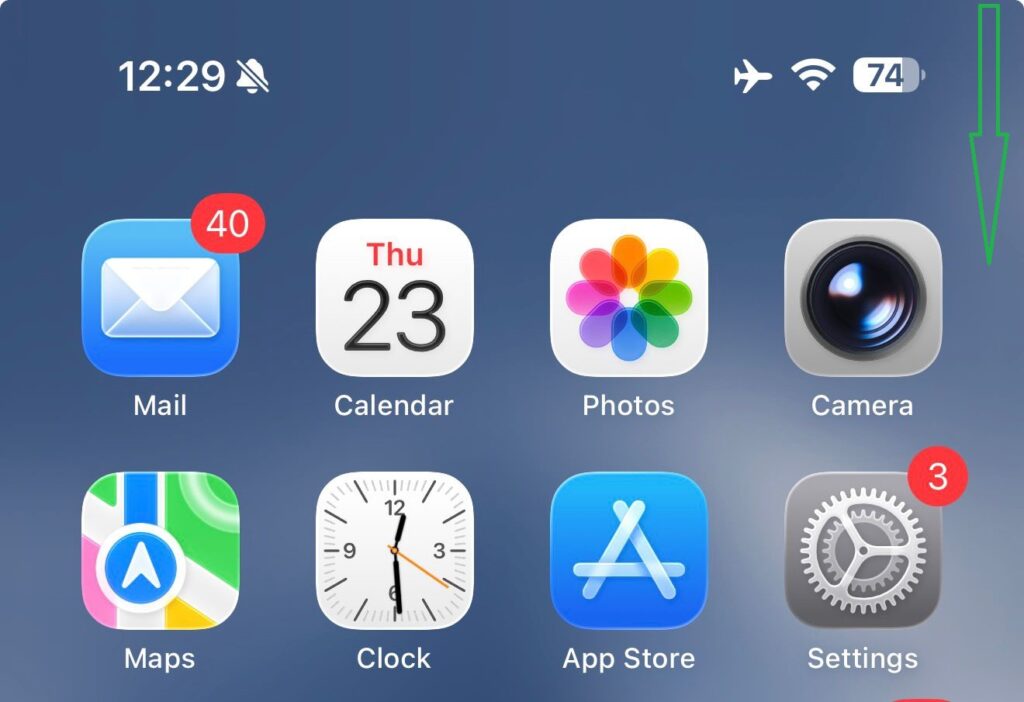
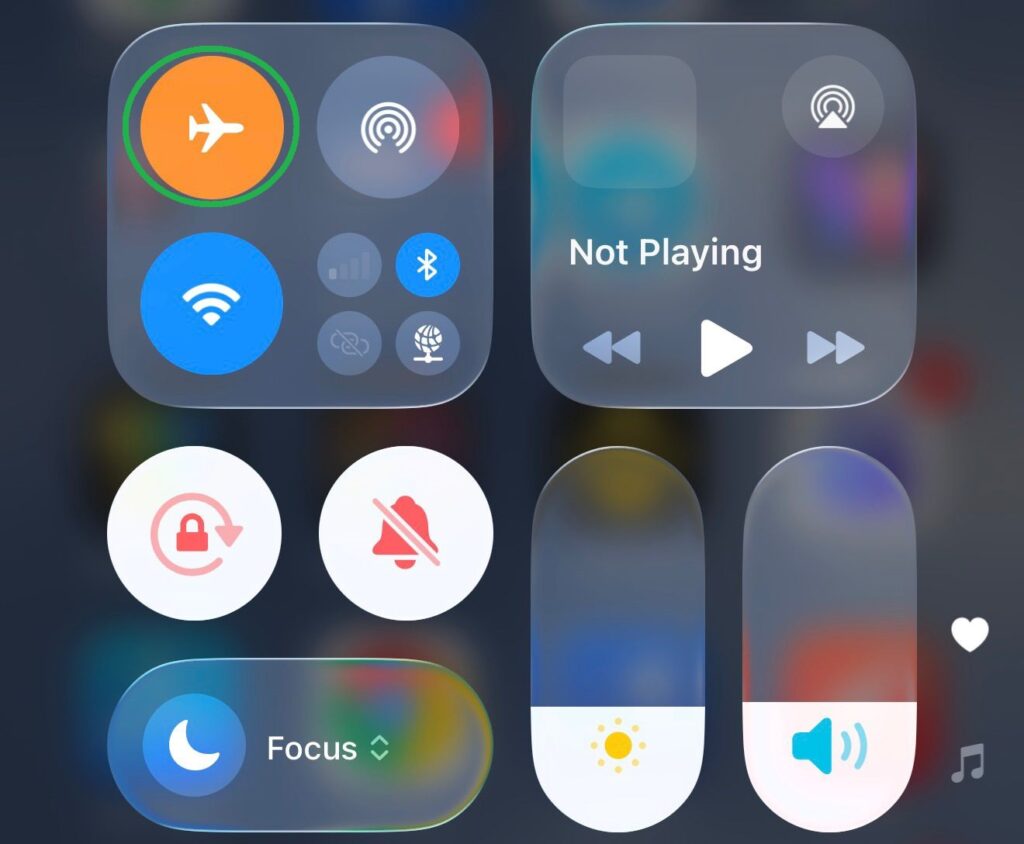
Step 2: Tap the airplane icon. It turns orange when Airplane Mode is on.
Step 3: Tap the Wi-Fi icon to turn it off. Make sure both icons are now off.
On iPhone SE, iPhone 8, and older models: Swipe up from the very bottom of the screen to open Control Center. All other steps are the same.
What the other person sees: Your pin stays frozen where you were when you went offline. A grey timestamp shows how long ago Find My last had a signal from you. It does not look intentional.
One important thing to know: Airplane Mode is temporary. The moment you go back online, Find My starts updating your location again right away.
Also, even with Airplane Mode on, Apple can still find your iPhone for up to 24 hours using Bluetooth signals from nearby Apple devices. Your contacts cannot see you, but Apple’s recovery system still works.
Method 2: Use a Second Apple Device
This is the most discreet method on this list. Instead of hiding your location, you move it. You set a second Apple device as your official location source, leave it somewhere, and everyone tracking you sees that device’s location instead of yours. Your actual iPhone disappears from the map completely, and the other person sees a fully live pin with no reason to question it.
You need two Apple devices logged into the same Apple ID. This can be an old iPhone, an iPad, or a Mac.
Step 1: On your main iPhone, open Settings and tap your name at the top.
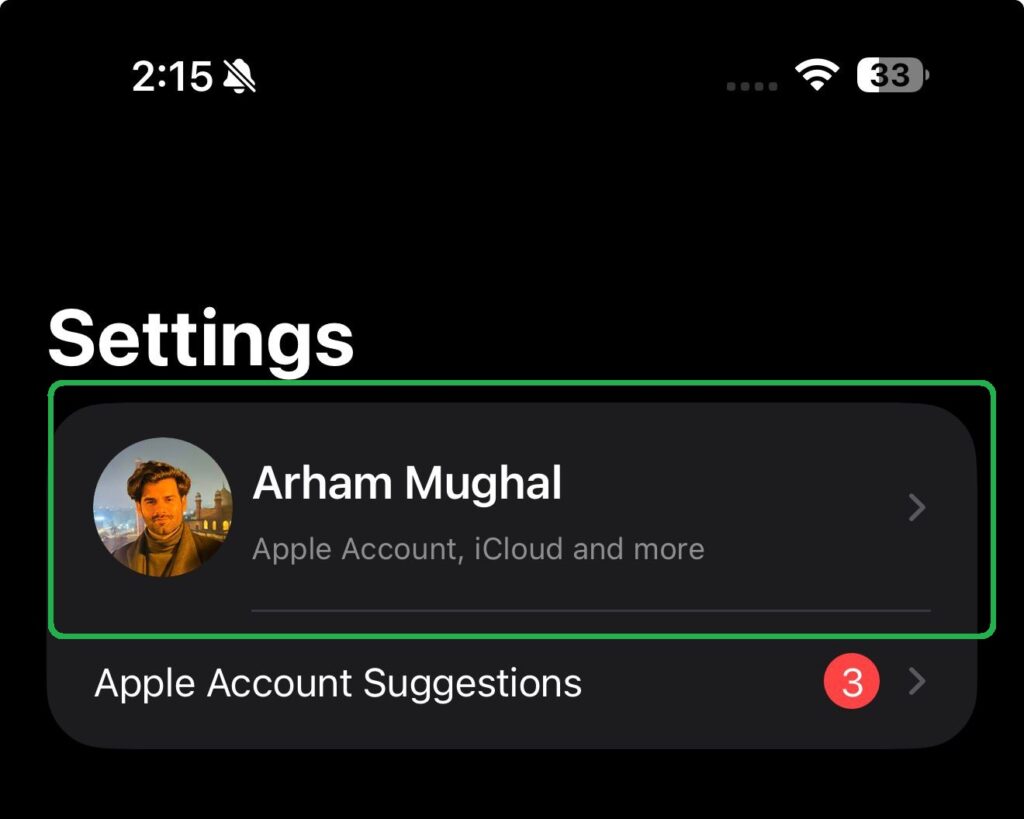
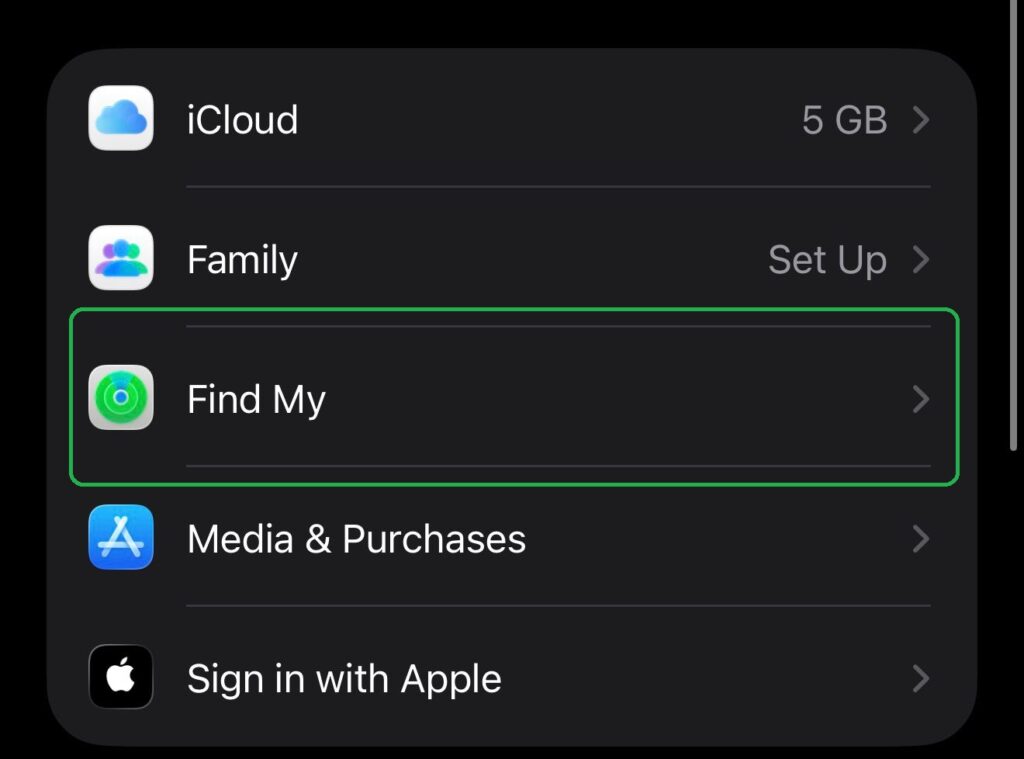
Step 2: Tap Find My.
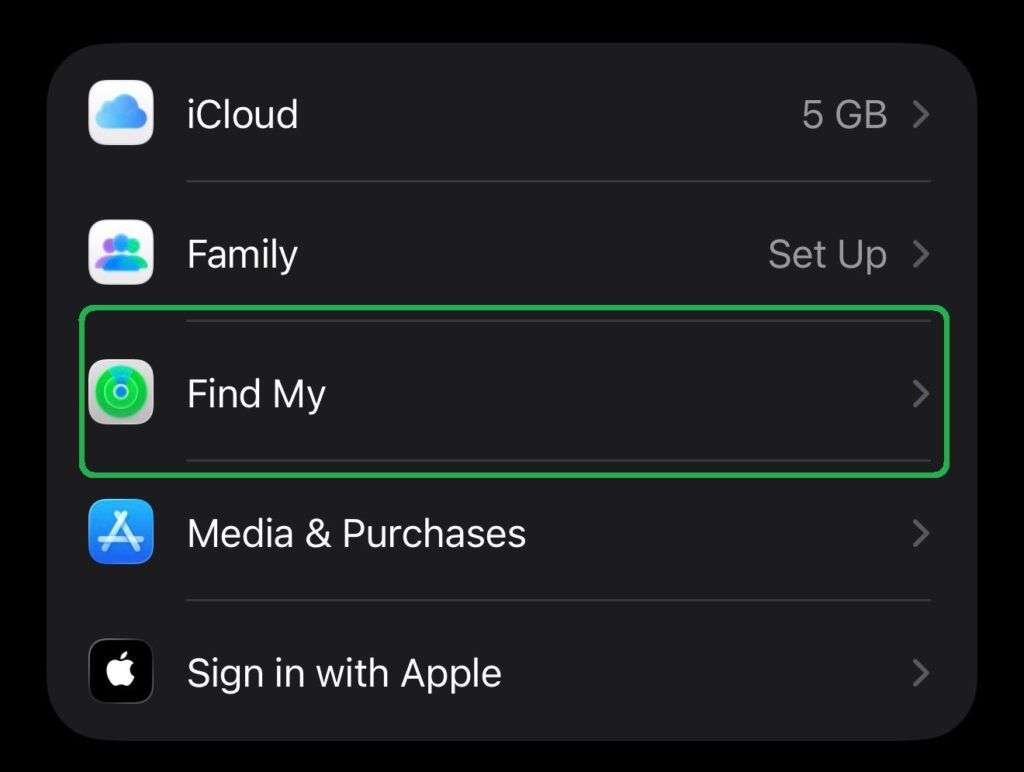
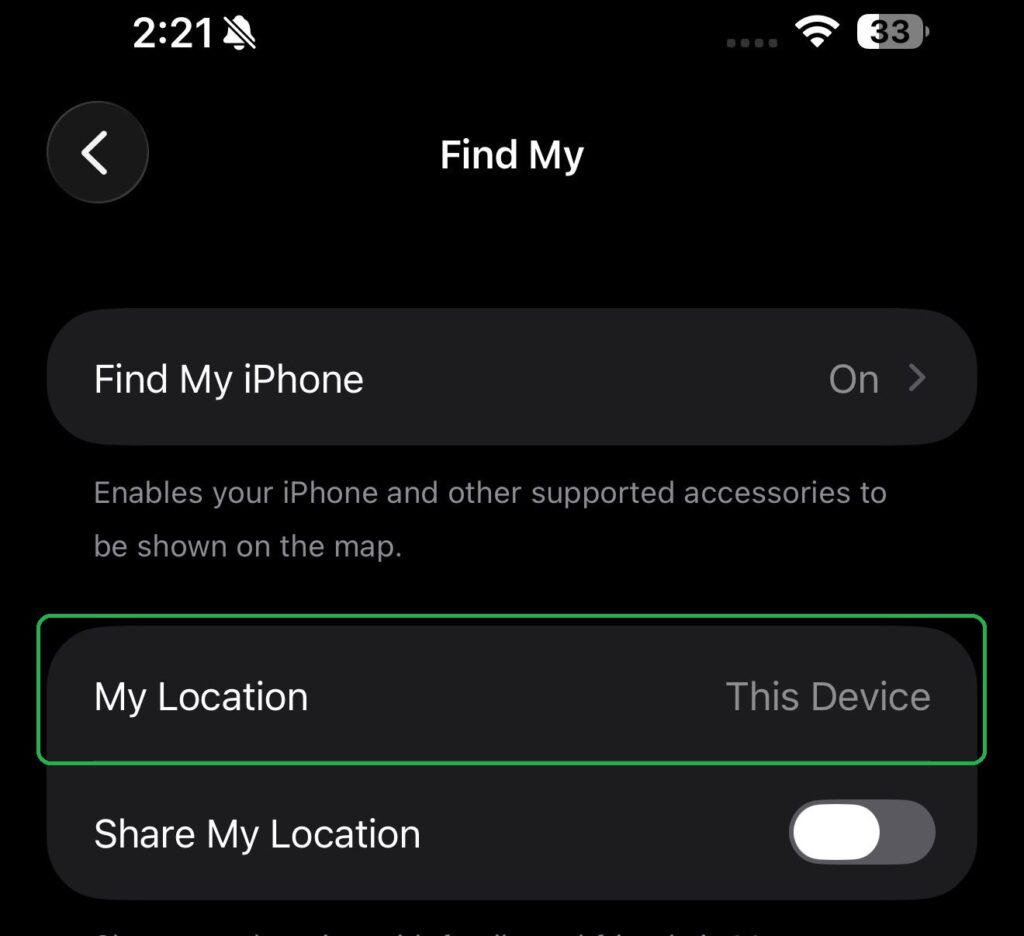
Step 3: You will see My Location showing “This Device.” That is what your contacts currently track.
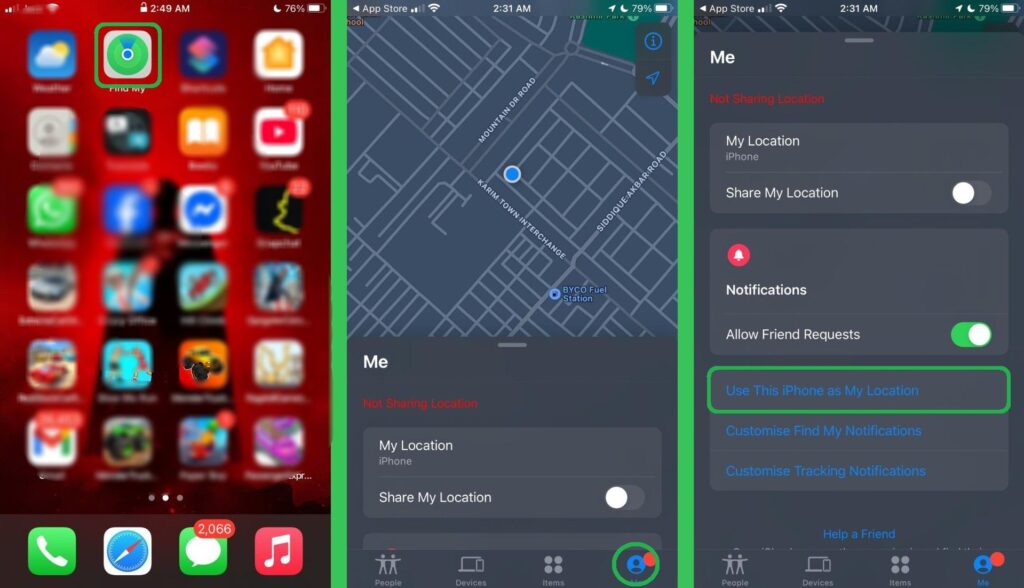
Step 4: Pick up your second device. Open the Find My app on it.
Step 5: Tap the Me tab at the bottom of the screen.
Step 6: Tap “Use This Device as My Location.”
Step 7: Done. Your second device is now the active location source.
Read Also: How Can I Change the Language on My iPhone
Leave that second device somewhere that makes sense. Home, your desk, anywhere believable. Everyone who shares location with you now sees that pin, not yours. Zero notifications go out. Nothing changes on their screen.
To switch back later, open Find My on your main iPhone, go to the Me tab, and tap “Use This iPhone as My Location.”
Note: This only works with Apple devices. Android phones cannot be used as a location source in Find My.
Method 3: Turn Off Cellular Data for Find My Only
This is the most practical everyday method, and barely any guides cover it properly.
Instead of cutting all internet like Airplane Mode does, you remove Find My’s access to cellular data only. You can still text, call, browse, use WhatsApp, watch videos, and do everything else normally. Only Find My gets cut off.
Before you start, go to the physical spot where you want your location to appear frozen. Your pin will lock to wherever you are standing when you complete these steps.
Step 1: Open Settings.
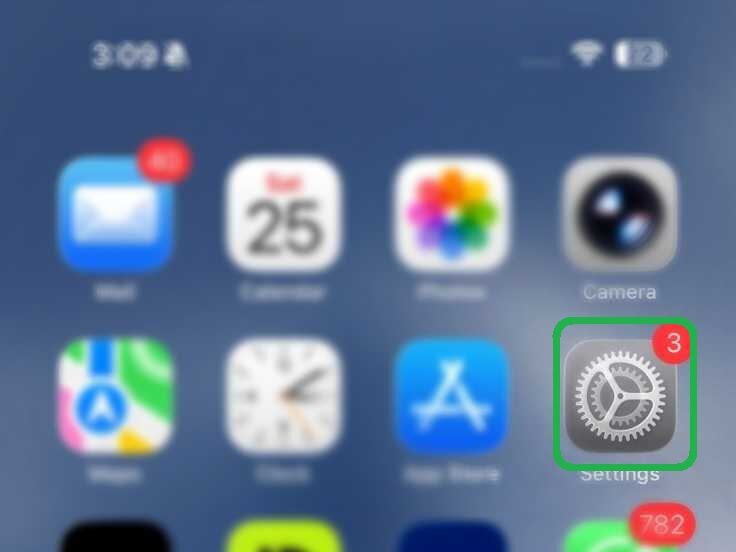
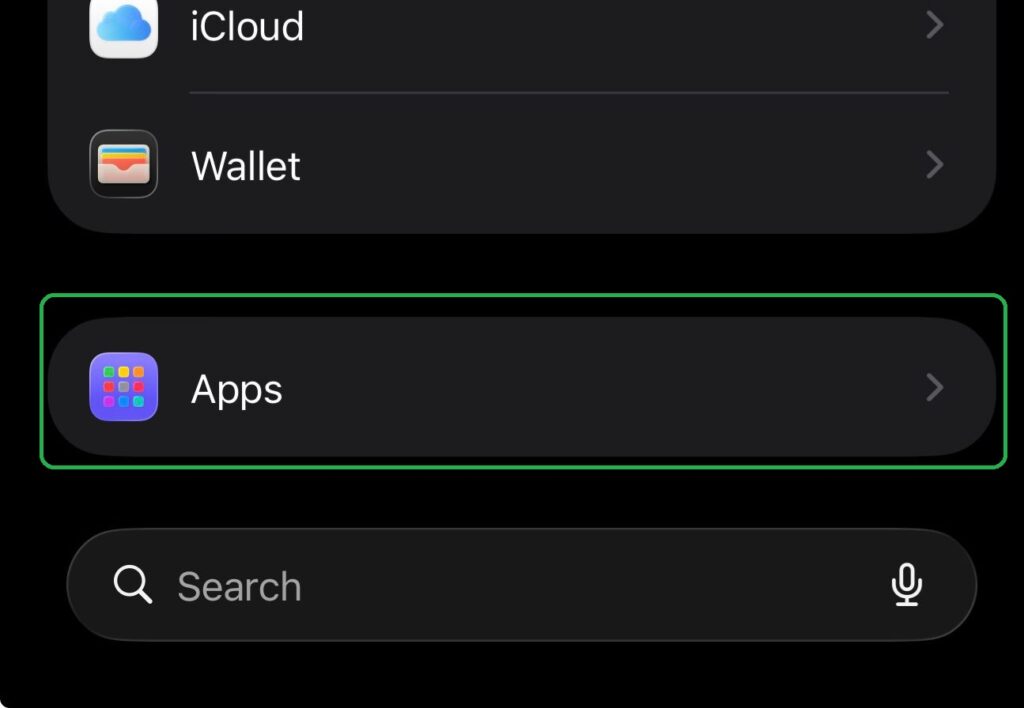
Step 2: Scroll to the bottom and tap Apps.
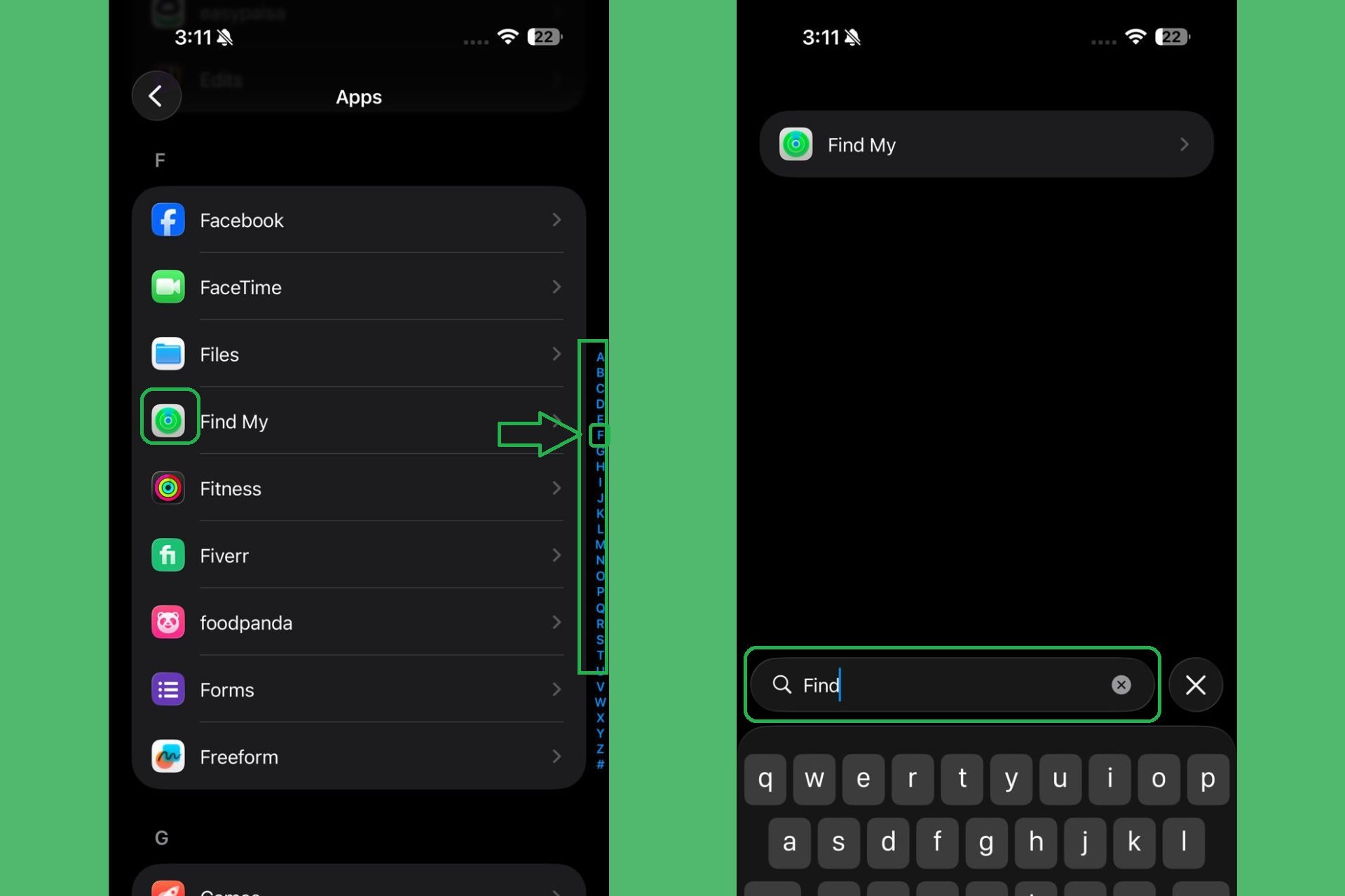
Step 3: Scroll to the letter F and tap Find My. You can also tap the search bar at the bottom and type Find My to find it faster.
Step 4: Find the Cellular Data toggle and switch it off.
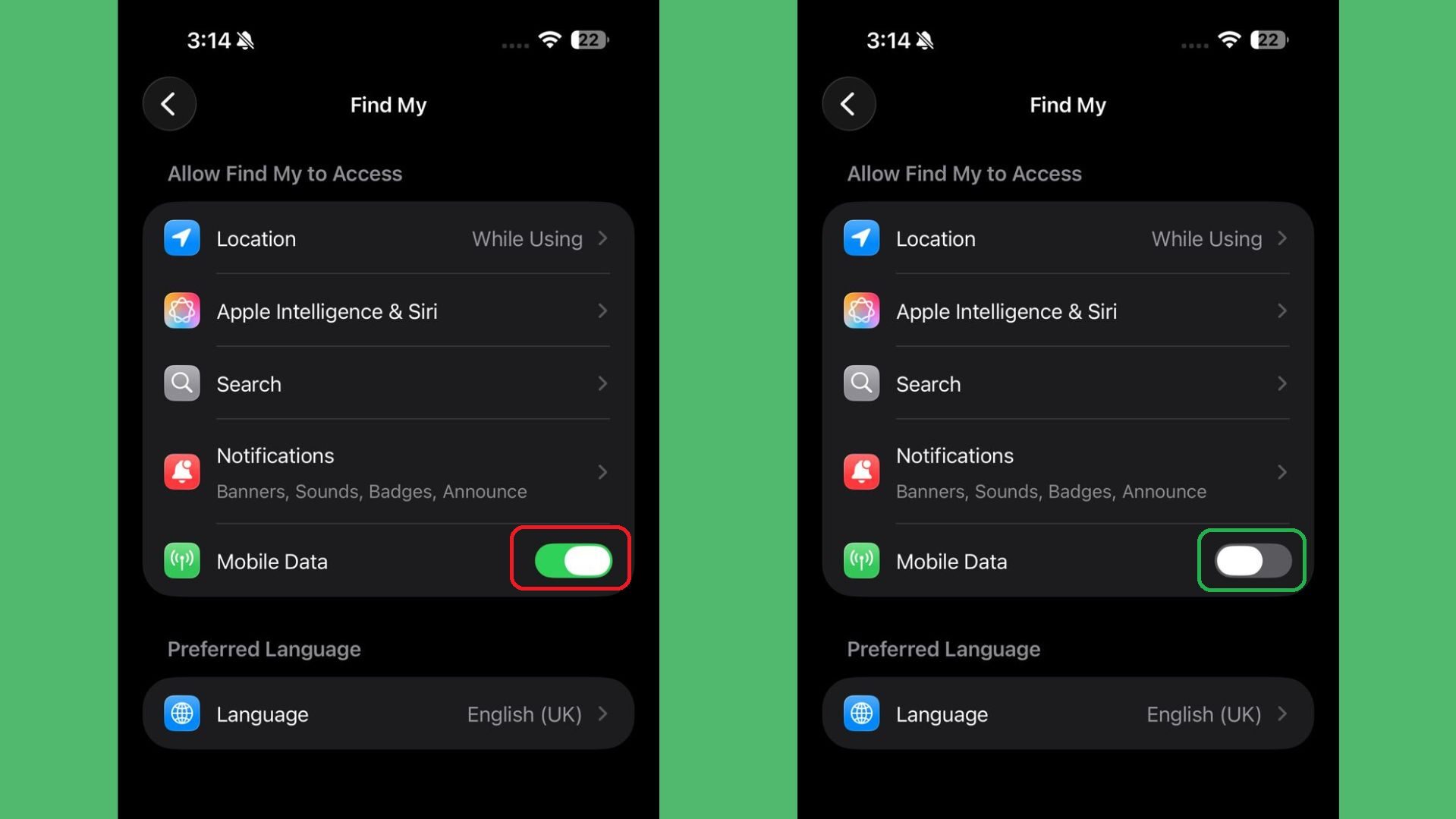
Step 5 (Recommended): On the same page, tap Location and set it to Never.
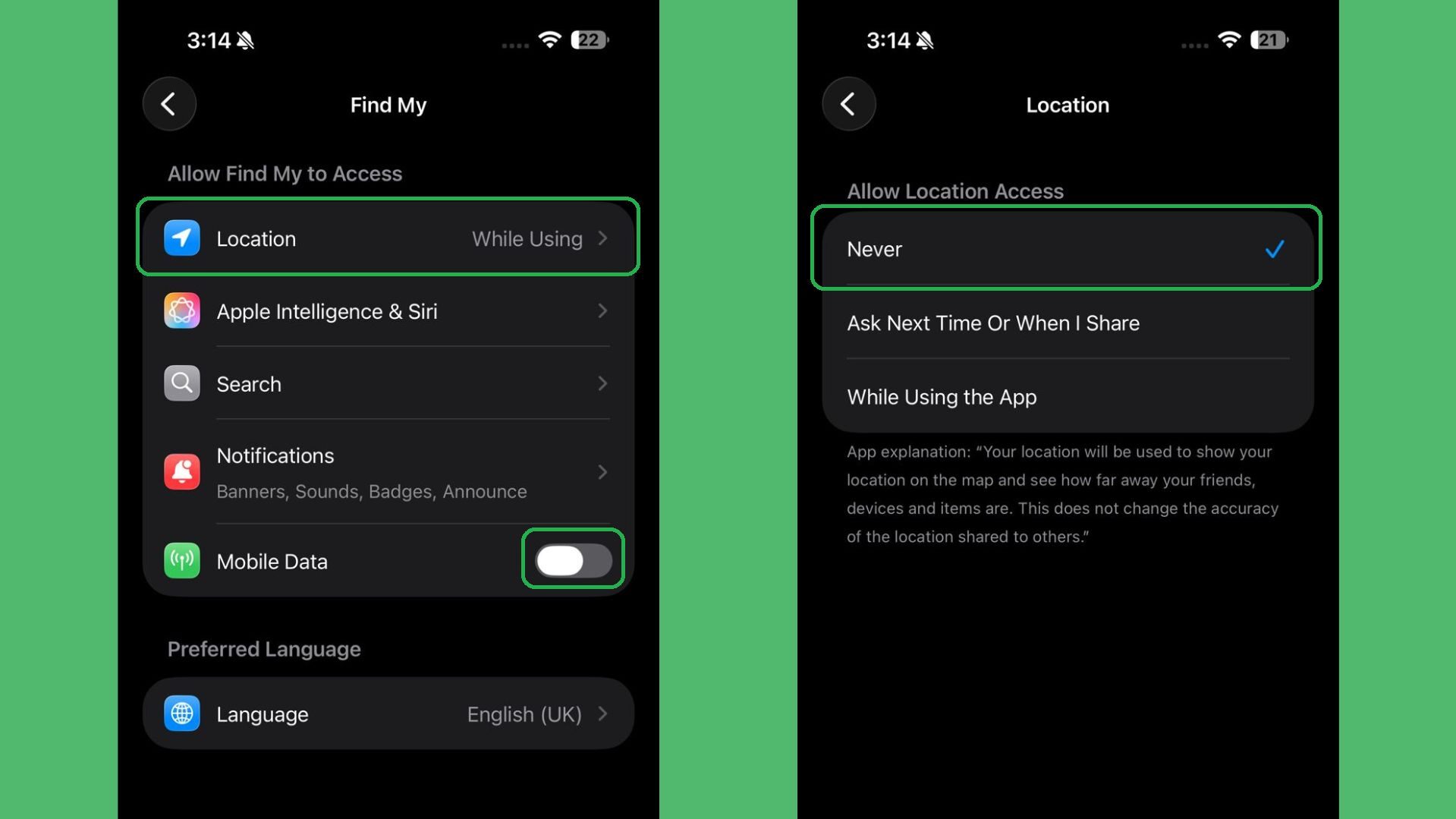
What happens: Find My cannot reach the internet through cellular. Your pin freezes at the spot where you were standing. To anyone else, it looks like your phone just lost signal there.
Important: If your phone connects to a Wi-Fi network, Find My might resume updating through Wi-Fi. Setting Location to Never in Step 5 stops that completely.
Method 4: Turn Off Share My Location
This is the simplest built-in option. One toggle, and your location disappears from every contact’s Find My screen at once.
The trade-off is that it is not subtle. Nobody gets a push notification. But if they open Find My and look for you, they will see Location Not Available next to your name. That message makes it clear something was turned off on purpose. Use this when speed matters more than secrecy, or when you want to stop sharing with everyone at the same time.
Step 1: Open Settings and tap your name at the top.
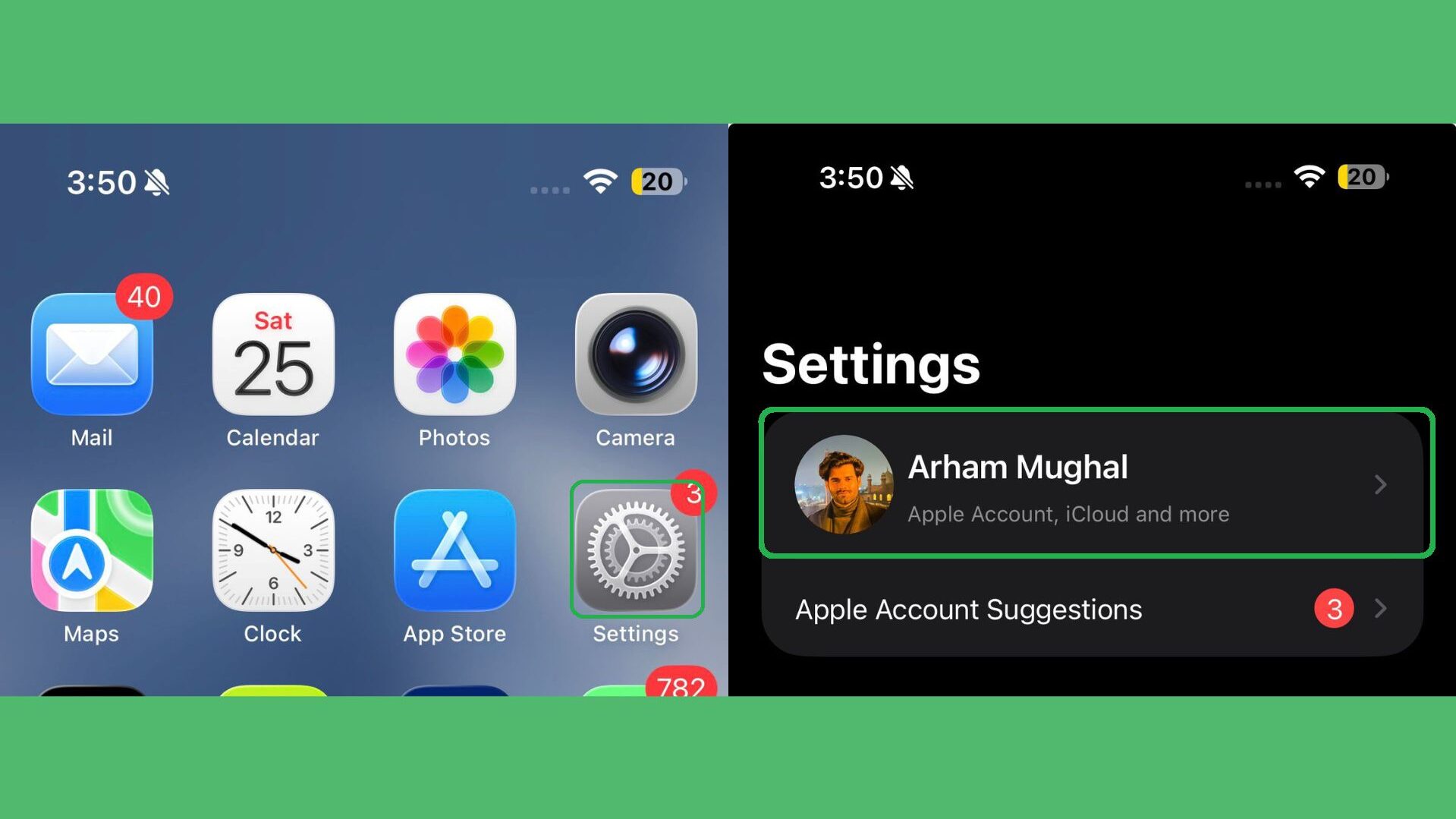
Step 2: Tap Find My.
Step 3: Toggle Share My Location off.
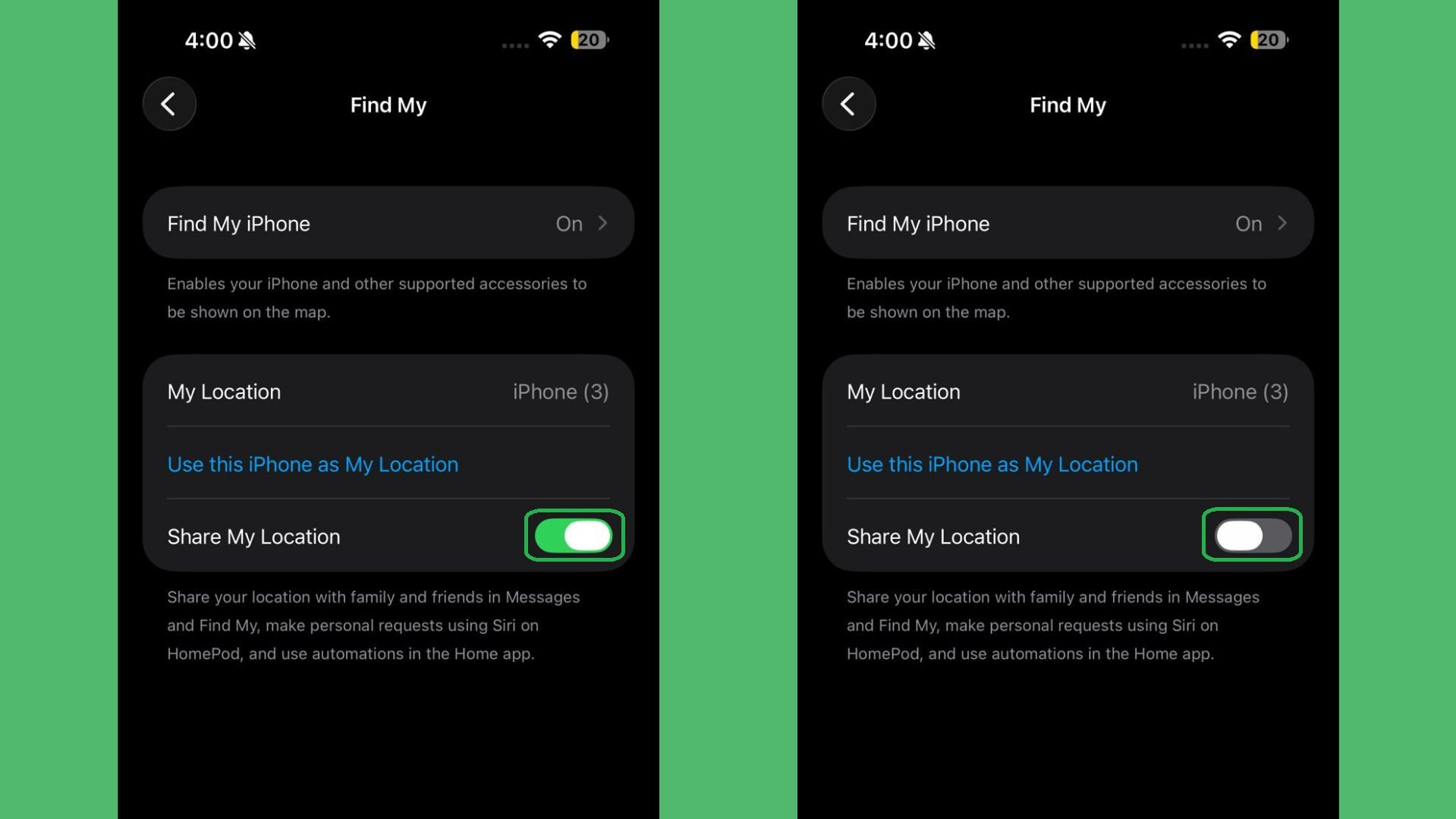
You can also reach this same toggle by going to Settings, then Privacy and Security, then Location Services, then Share My Location.
Your Activation Lock stays active. If your phone is lost or stolen, Apple can still recover it. The only thing that changes is that your contacts can no longer see you on the map.
One thing worth knowing: when you turn Share My Location back on later, your contacts receive a notification that you resumed sharing. Turning it off is silent, but turning it back on is not.
Method 5: Stop Sharing with One Specific Person
Every other method affects all your contacts at once. This one is different. It removes location access from exactly one person while everyone else keeps seeing your location as normal.
Step 1: Open the Find My app.
Step 2: Tap People at the bottom of the screen.
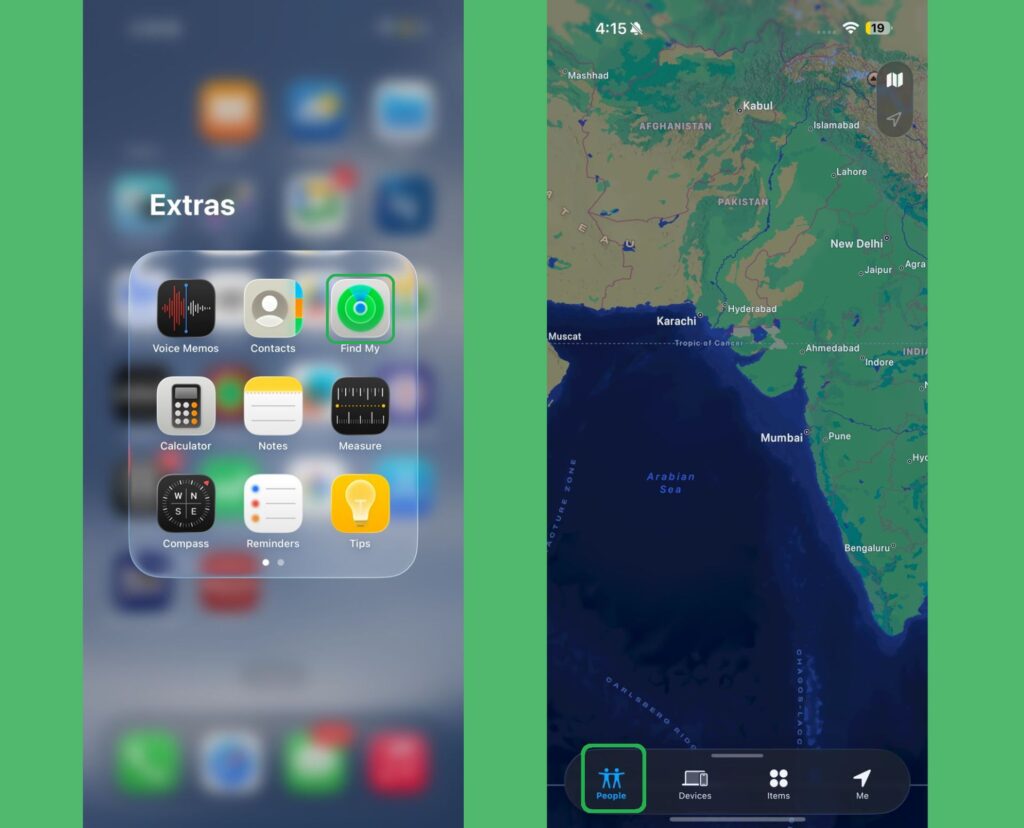
Step 3: Tap the name of the person you want to remove.
Step 4: Scroll down on their card and tap Stop Sharing My Location.
Step 5: Tap Stop to confirm.
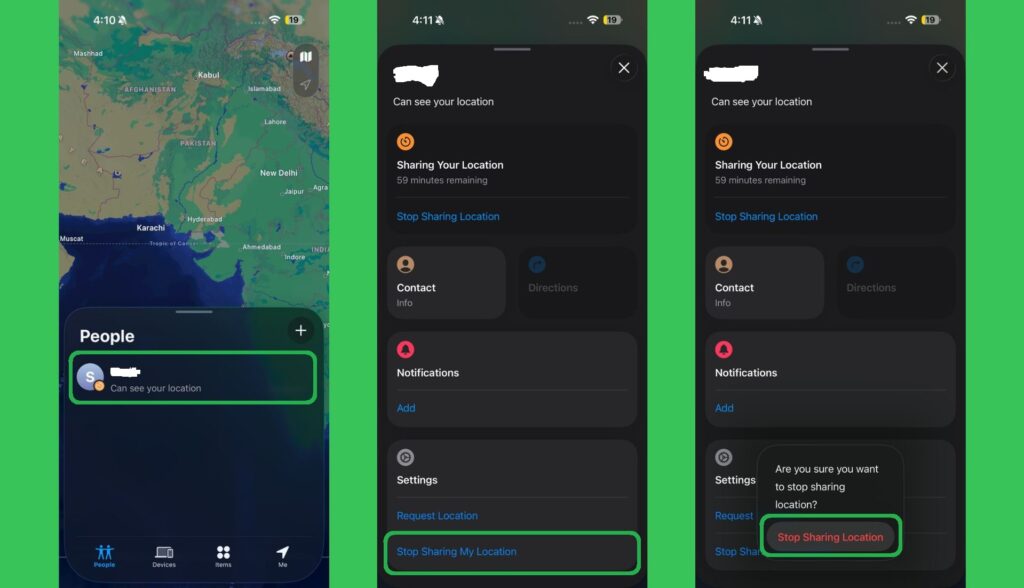
They will not get a notification. But if they open Find My later and look for your name in their list, it will be gone. If they checked regularly, they would notice. If they rarely look, it could be a while before they realize.
To share with them again, you have to send a brand new location sharing invitation. The old one does not come back on its own.
Read Also: How to Delete Duplicate Contacts on iPhone
Stop Sharing Location Inside iMessage (The Quiet Method Nobody Talks About)
This is something that barely gets covered in other guides. If you shared your location directly inside a Messages conversation, that share is separate from your Find My settings. You can stop it from inside the chat without touching Find My at all.
Step 1: Open Messages and go to the conversation.
Step 2: Open the conversation with the person you shared your location with, then tap their name or profile picture at the top of the chat.
Step 3: Tap Stop Sharing My Location.
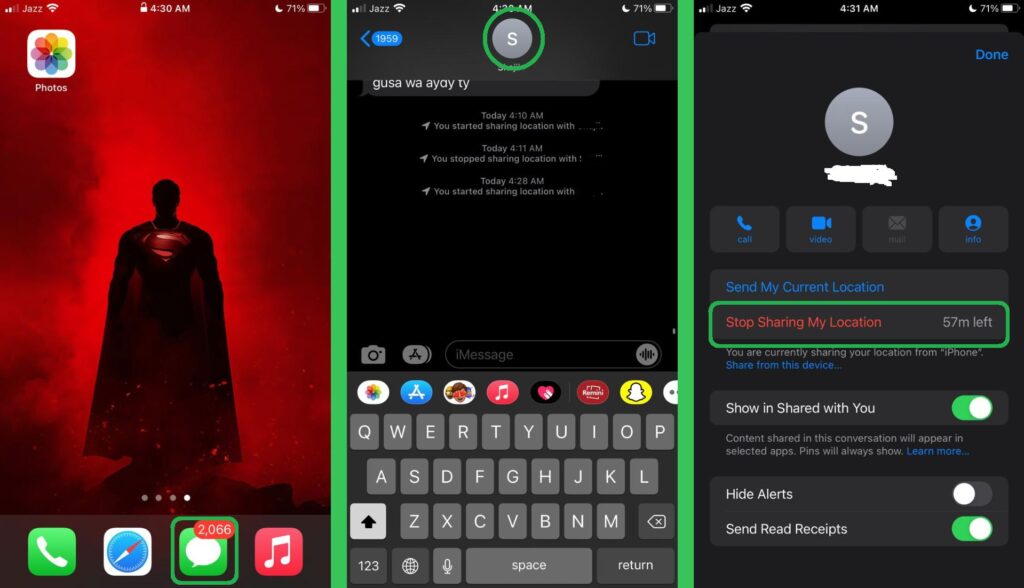
The other person does not get a notification. This is the quietest method on this list for removing a location share from one specific chat.
One thing to note: on iOS 17 and later, if you stop sharing through Find My instead of through the Messages thread, a small note saying “Location Expired” appears in the conversation. Stopping it from inside the Messages thread avoids this.
What the Other Person Actually Sees
This is the question everyone really wants answered. Here is exactly what each method looks like from their side.
| What You Did | What They See | Does It Look Intentional |
|---|---|---|
| Airplane Mode with Wi-Fi off | Frozen pin and timestamp like “last seen 12 min ago” | No, looks like a signal dead zone |
| Second Apple device | Fully live pin at the second device location | Not at all, looks completely normal |
| Cellular data off for Find My | Pin frozen at last spot with no updates | No, looks like signal loss |
| Share My Location off | Location Not Available | Yes, something clearly changed |
| Stop sharing with one person | Your name gone from their list | Yes, if they were looking for you |
| Stop sharing in iMessage | No change in their chat, location just stops | No, very quiet |
Why Does Find My Say Location Paused for 16 Hours?
This comes up a lot on Apple Community forums and almost no article explains it properly.
When Find My cannot get a fresh location reading, it estimates when the next update will happen and shows a countdown. That timer can sometimes go as high as 16 hours. This is Apple’s own system behavior. It is not something you triggered on purpose.
The most common causes are Low Power Mode slowing down background updates, no Wi-Fi or cellular connection, Background App Refresh turned off for Find My, or the phone sitting in Do Not Disturb mode.
To fix it, open the Find My app directly on that device. Opening it forces an immediate location refresh and clears the countdown. You can also turn off Low Power Mode in Settings under Battery, or reconnect the device to a network.
Does Pausing Location Save Battery?
Yes, and more than most people expect.
Find My runs a constant cycle in the background. GPS reads your position, cellular data sends it to Apple’s servers, Background App Refresh keeps the whole loop going even when your screen is off. This drains between 5 and 15 percent of your battery every day.
Pausing location stops that cycle completely.
If you do not want to pause sharing entirely, there is a smaller change that still helps. Go to Settings, then Privacy and Security, then Location Services, then Find My. Change the permission from Always to While Using the App. This stops Find My from running GPS in the background when you are not actively looking at it.
For more ways to improve your iPhone battery life, check out our guide on How to Improve iPhone Battery Life.
Things to Know Before You Pause Find My
Apple can still find your phone even when your location is paused. Pausing only affects what your contacts see. Apple’s Find My network uses Bluetooth signals from nearby Apple devices to locate your iPhone even when it is offline. Your phone can be found by Apple’s recovery system for up to 24 hours after being powered off. Your friends cannot see you, but Apple’s system still can.
iPhone 15 and newer have a notification you might not know about. Apple added Precision Finding on the iPhone 15 and newer models. If someone uses the Find Nearby option in Find My to physically locate you, both of you get a notification. You will see a message saying that person is trying to find you. This does not happen on iPhone 13 or iPhone 14. On those older models, someone can check your location without any alert appearing on your screen.
Do not sign out of iCloud just to pause location. Some articles suggest this. It is a bad idea. Signing out of iCloud turns off iMessage, FaceTime, iCloud backups, and your Activation Lock. If your phone gets stolen, someone can reset it without your Apple ID. Use Airplane Mode or the Share My Location toggle instead.
Read Also: How to Disable Pop Up Blocker on iPhone
Turn the location back on after you are done. If your iPhone goes missing while Find My is paused, you lose your best tool for recovering it. Pause for the time you need, then turn it back on.
Emergency services can still reach you. If you call 911, emergency services access your location through carrier data regardless of what Find My settings you have changed. Pausing location in Find My does not affect that.
Which Method Should You Use?
Quick break for an hour: Airplane Mode with Wi-Fi also off. Takes five seconds and reverses when you go back online.
Days of privacy with location looking normal: Second Apple device. Set it up once, leave it somewhere, and nothing looks different to anyone tracking you.
Full phone use with only Find My frozen: Disable cellular data for Find My in Settings under Apps.
Stop sharing from one specific chat: Open the iMessage thread, tap their name, tap Stop Sharing My Location.
Remove one person without affecting others: Find My, People tab, tap their name, Stop Sharing My Location.
Cut everyone off at the same time: Share My Location toggle off in Settings under your name and then Find My.
Frequently Asked Questions
Can you pause location on Find My without anyone knowing? Yes. Airplane Mode with Wi-Fi off sends no notifications and your pin just looks frozen like a signal issue. The second Apple device method keeps a live pin showing so nothing looks unusual at all. Stopping inside an iMessage thread is also completely quiet.
Does Find My send a notification when you stop sharing? No push notification goes to their phone. But depending on the method, they may see Location Not Available if they open Find My and look for you, or notice your name is gone from their People list.
What does location paused mean on Find My? It means the device stopped sending fresh GPS data. Usually caused by Airplane Mode, Low Power Mode, no internet, or the phone being powered off.
Why does Find My show location paused for 16 hours? Find My estimates the next update and shows a countdown when it cannot get a fresh reading. Open the Find My app on that device directly to force an immediate refresh.
Does Airplane Mode turn off Find My completely? No. Your contacts lose your location updates, but Apple’s Find My network still runs through Bluetooth. Your phone can be found by Apple’s system for up to 24 hours after powering off.
Does pausing location help battery life? Yes. Stopping location tracking removes constant GPS polling and background data pings. Most users see a 5 to 15 percent improvement in daily battery life.
What happens when I turn Share My Location back on? Your contacts get a notification that you started sharing again. Turning it off is silent, but turning it back on is not.
Does the second device method work with Android phones? No. Only Apple devices like another iPhone, iPad, or Mac signed into the same Apple ID work for the Use This Device as My Location feature.
Wrapping Up
There is no single best method here. The right one depends on what you need right now.
Quick temporary freeze with no suspicion: Airplane Mode with Wi-Fi off. Long-term privacy with location looking live and normal: second Apple device. Full phone use with only Find My cut off: disable cellular data for Find My in Settings. Quietly remove one person from a chat: iMessage thread method. Remove one person from Find My: People tab inside the Find My app. Cut everyone off instantly: Share My Location toggle in Settings.
None of these need an extra app, a payment, or any tech knowledge. They are all built into your iPhone already. Apple put these privacy controls into iOS 18 and iOS 26 because your location data belongs to you.
Use whichever method fits your situation, turn things back on when you are ready, and keep Find My active when you do not need privacy so your anti-theft protection stays working.
Last updated April 2026. Tested on iOS 18 and iOS 26 on iPhone SE through iPhone 16 Pro Max.Share

21 Comments
https://shorturl.fm/7ojdV
Pingback: How to Pause Location on Find My: 5 Proven Methods – Skyteck
Phim Sex Mới, Phim Heo Hay, JAV HD Không Che, Đụ Nhau Cực Nứng
This is exactly the kind of content I was searching for.
Xem phim sex clip sex Việt Nam không che mới nhất được GaiDamVL tuyển chọn, cập nhật liên tục mỗi ngày.
This is exactly what I was looking for.
Awesome! Its genuinely remarkable post, I have got much clear idea regarding from this post
Great post, very enlightening.
https://shorturl.fm/o7V6P
Xem phim sex clip sex Việt Nam không che mới nhất được GaiDamVL tuyển chọn, cập nhật liên tục mỗi ngày.
https://shorturl.fm/P64SY
https://shorturl.fm/Pa5Pu
Your message is polished and aligns well with strategic interests.
Custom lifting solutions are indeed necessary for complex infrastructure projects.
https://shorturl.fm/SR8eN
Excellent information for shipyard heavy lifting requirements.
https://shorturl.fm/6PK48
Ik voel me zelfs laat in de nacht erg veilig
I’m curious to find out what blog platform you happen to be using?
I’m experiencing some small security issues with my latest site
and I’d like to find something more risk-free. Do you have
anyy solutions?
Love this blog post. I’m currently comparing a few different private chef styles for a backyard hibachi Washington DC gathering next month. It�s great to see this culinary trend growing because the food quality and the entertainment value are usually phenomenal.
https://shorturl.fm/eJLeX