

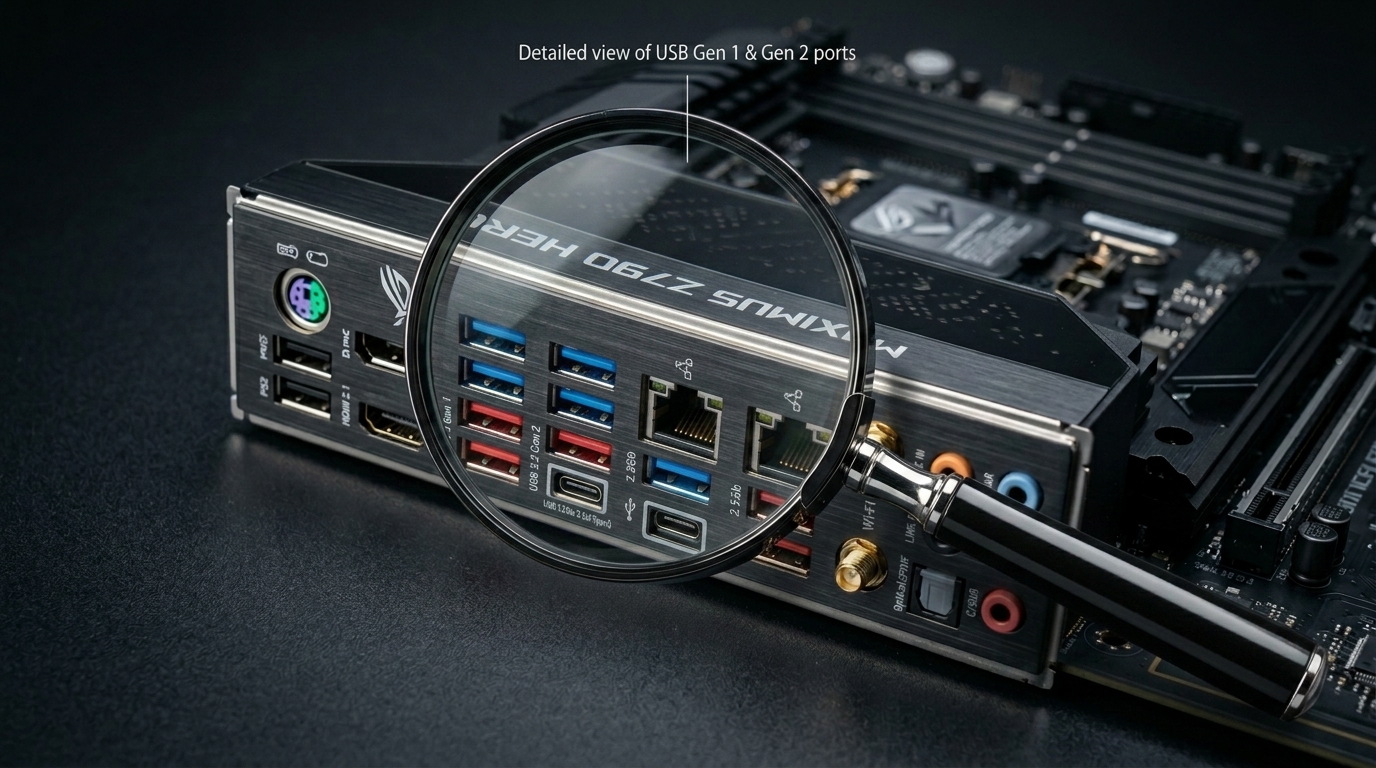
Most motherboards have between 6 and 14 USB ports in total. That number includes the ports you can see on the back of your PC and the extra ones connected through internal headers inside the case.
Knowing your exact USB port count matters more than you think. Run out of ports, and you’re constantly unplugging devices just to charge your phone or connect a flash drive. This guide will show you exactly how many USB ports your motherboard has and five easy ways to find out.
Quick Answer
Most motherboards have 6 to 14 USB ports total, depending on the chipset, form factor, and price tier. Budget boards typically have 4 to 6 ports. Mid-range ATX boards offer 6 to 10 ports. High-end gaming boards often reach 12 to 14 ports or more. This total includes both rear panel ports and front-panel connections through internal headers.
USB Port Count by Motherboard Type
The number of USB ports on a motherboard is not fixed. It depends on three main things: the board’s price tier, its physical size (form factor), and its chipset. Here’s what you can expect across the most common motherboard types.
| Motherboard Type | Typical USB Ports (Total) | Best For |
|---|---|---|
| Budget Motherboard (B-series, H-series) | 4 to 6 ports | Office work, basic home use |
| Mid-Range ATX (B550, B650, B760) | 6 to 10 ports | Everyday gaming, work from home |
| High-End ATX (Z790, X870E, X670E) | 10 to 14+ ports | Gaming rigs, content creation |
| Enthusiast / Workstation (HEDT, TRX) | 14 to 20+ ports | Video editing, 3D work, streaming |
| Mini-ITX (compact builds) | 4 to 6 ports | Small form factor PCs, HTPCs |
| Micro-ATX | 6 to 10 ports | Compact mid-range builds |
One thing many people get wrong: they count only the ports on the back of the PC. But your motherboard also has internal USB headers that connect to your case’s front-panel ports. Always count both to get the real total. More on that in Section 4.
How to Check How Many USB Ports Your Motherboard Has (5 Methods)
You don’t need to open your PC or guess. Here are five reliable ways to find your exact USB port count, from easiest to most detailed.
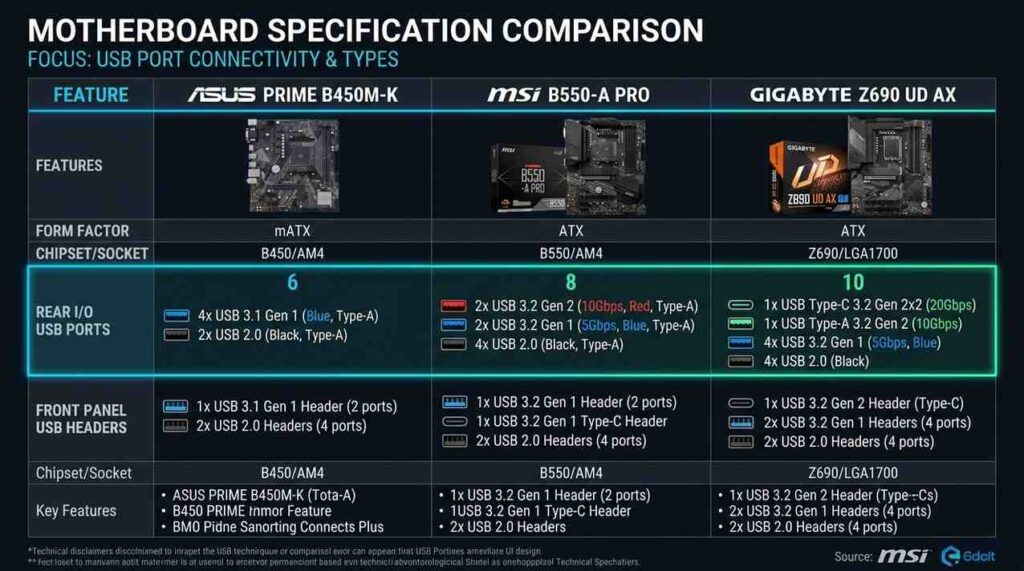
Method 1: Check the Manufacturer’s Spec Page (Most Accurate)
This is the most reliable method. Every major motherboard brand publishes a full specification sheet online.
Windows + R,
type msinfo32,
and press Enter. Look for BaseBoard Product and BaseBoard Manufacturer.
Pro Tip: The internal header section is where most people undercount. A single USB 3.2 Gen 1 header supports 2 ports. Two USB 2.0 headers support 4 ports. These all need to be added to your rear panel count.
Method 2: Use Windows System Information (msinfo32)
This works without opening your PC case and takes under a minute.
Windows + R,
type msinfo32,
and press Enter.
This method shows controllers, not individual ports, so use it alongside Method 1 for the full picture.
Method 3: Use Command Prompt (CMD)
Windows + S and search for CMD. Right-click and choose Run as Administrator.
wmic path Win32_USBController get Name
On Linux, open a terminal and type lsusb -t to see a tree view of all USB devices and their connected hubs.
Method 4: Use Device Manager (Windows 11)
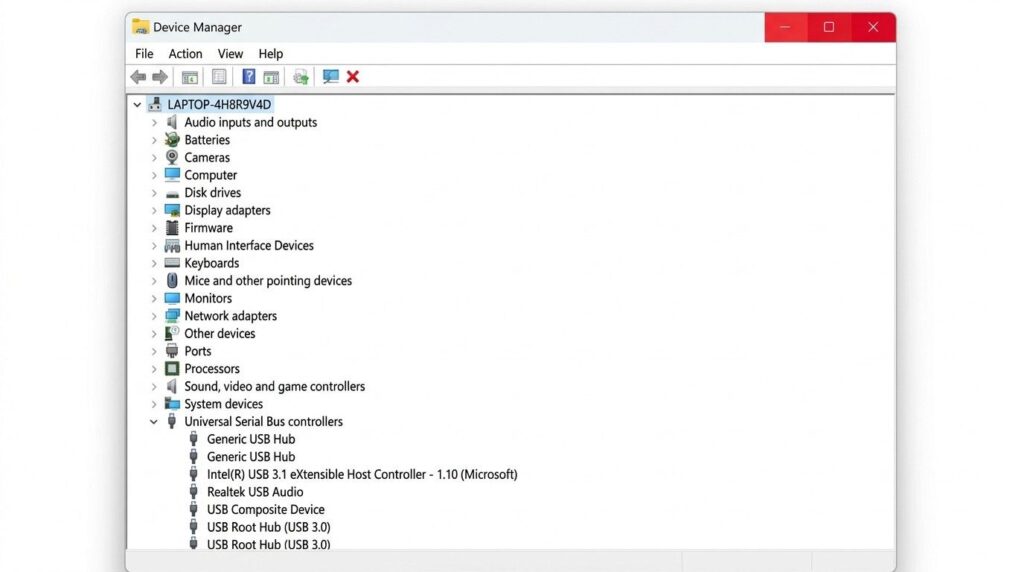
Windows + X and click Device Manager.
Method 5: Check via BIOS/UEFI (Useful When Windows Won’t Load)
This method is great when you’re setting up a new PC or can’t access Windows.
BIOS doesn’t always list individual port counts clearly, but it confirms which USB controllers are active on your board.
Method 6: Physically Count Back Panel and Front Panel Port
True total formula: Rear ports + Front panel ports + (Headers × ports per header) = Full USB capacity.
Understanding USB Port Types on Your Motherboard
Not all USB ports are equal. The type tells you two things: how fast data transfers, and what connector shape to use. Here’s a breakdown of every USB type you’ll find on a modern motherboard.
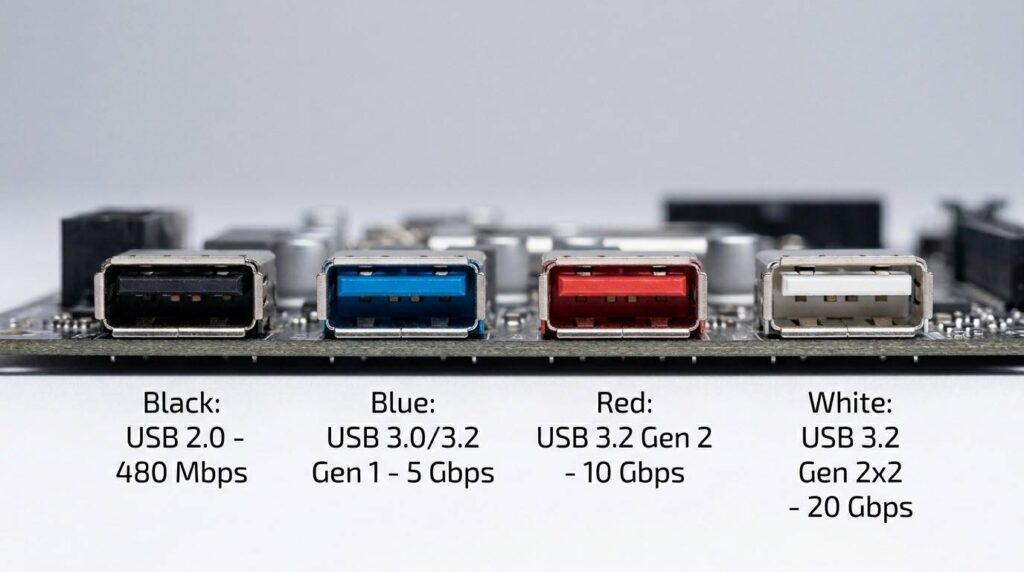
USB 3.0 / USB 3.2 Gen 1 (Blue Port) — 5 Gbps
Ten times faster than USB 2.0. Blue ports handle external hard drives, large USB flash drives, and webcams well. This is the most common “fast” port on mid-range motherboards. You’ll also see this labeled as SuperSpeed USB or USB 3.1 Gen 1, which is the same thing.
USB 3.2 Gen 2 (Red or Teal Port) — 10 Gbps
Twice as fast as USB 3.0. Ideal for fast NVMe SSDs in external enclosures and 4K capture cards. More and more mid-range boards now include at least one or two of these ports.
USB 3.2 Gen 2×2 (White Port) — 20 Gbps
Found on premium and high-end motherboards, almost always as a USB-C port. Great for professional video work or transferring large files quickly. If you don’t work with huge files regularly, you won’t notice the difference from Gen 2.
USB Type-C Port (Reversible Connector)
USB-C is a connector shape, not a speed standard. A USB-C port on your motherboard could run at USB 2.0 speeds or USB4 speeds depending on the board. Always check the spec sheet to see which USB generation your USB-C port runs at.
USB4 and Thunderbolt 4/5 (2025-2026 Boards) — 40 to 80 Gbps
USB4 is now appearing on high-end motherboards with Intel Z790 and AMD X870E chipsets. It offers up to 40 Gbps, and USB4 Version 2 (found on some 2026 boards) reaches 80 Gbps. Thunderbolt 5 on premium Intel boards pushes to 80 Gbps as well. Most everyday users won’t need this speed, but it’s great if you’re running external GPU setups or professional storage arrays.
| Port Color | USB Standard | Speed | Best Use |
|---|---|---|---|
| Black | USB 2.0 | 480 Mbps | Keyboard, mouse, dongles |
| Blue | USB 3.0 / 3.2 Gen 1 | 5 Gbps | External HDDs, webcams |
| Red or Teal | USB 3.2 Gen 2 | 10 Gbps | Fast SSDs, capture cards |
| White | USB 3.2 Gen 2×2 | 20 Gbps | Pro video, large transfers |
| Various (oval) | USB-C (USB4 / Thunderbolt) | 20–80 Gbps | Depends on board spec |
Good to Know: Port colors are not a strict industry standard. Some manufacturers use different colors or no color coding at all. Always check the label printed next to the port or read your motherboard manual to confirm the USB generation.
What Are Internal USB Headers? (The Hidden Ports Most Users Miss)
Internal USB headers are small pin connectors on your motherboard’s circuit board. They don’t look like USB ports, but they work as one. Your PC case’s front USB ports connect to these headers through cables.
This is where most people undercount their USB ports. If you only count what’s visible on the back of your PC, you’re missing these hidden connections entirely.
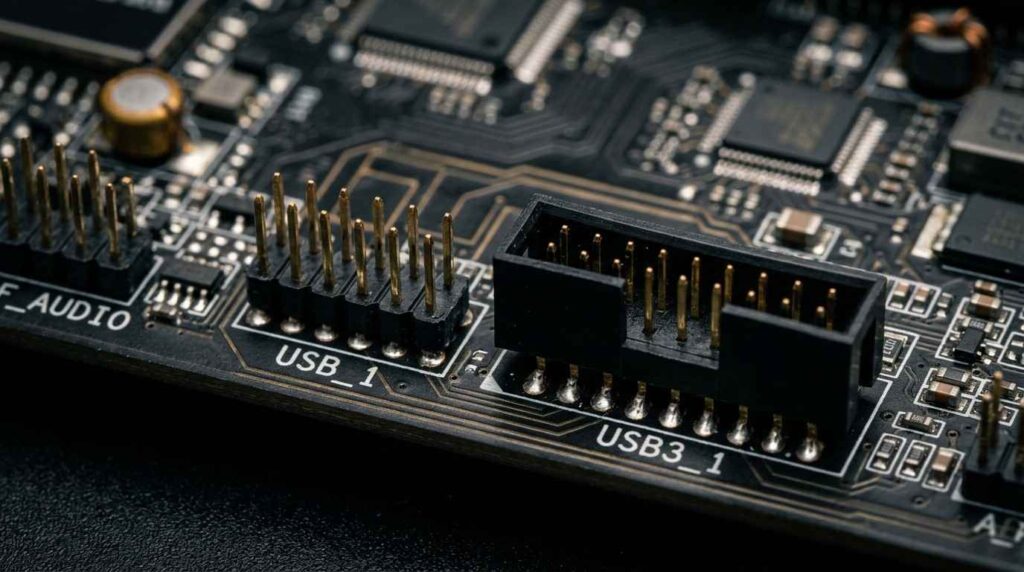
Types of USB Headers
| Header Type | Pin Count | Ports It Supports | Speed |
|---|---|---|---|
| USB 2.0 Header | 9-pin | 2 USB-A ports | 480 Mbps |
| USB 3.2 Gen 1 Header | 19/20-pin | 2 USB-A ports | 5 Gbps |
| USB-C Header (Key-A) | 20-pin | 1 USB-C port | 10 to 20 Gbps |
A typical mid-range motherboard has 2 USB 2.0 headers (supporting 4 ports total), 1 USB 3.2 Gen 1 header (supporting 2 ports), and sometimes 1 USB-C header. That’s up to 7 extra ports from headers alone, on top of the rear panel.
The Front-Panel Compatibility Trap
Here’s a common problem that most guides don’t mention. If your PC case has a USB-C port on the front, your motherboard needs a Key-A header to power it. Older boards from 2018 and earlier often don’t have this header. If you plug a USB-C case cable into a board with no Key-A header, that front port simply won’t work.
Always check your case’s front-panel USB cable types against your motherboard’s available header list before buying.
The AIO Cooler Header Problem
Another issue that catches builders off guard: many AIO liquid coolers use a USB 2.0 header for their pump control and lighting. If your motherboard only has two USB 2.0 headers and your case also needs both for front-panel connections, you’ll run out of headers before all your ports are working. Always count how many headers your devices need before you build.
Real Motherboard Examples: Exact USB Port Counts
Let’s look at real boards to make these numbers concrete. The total here includes rear panel ports plus maximum ports supported through internal headers.
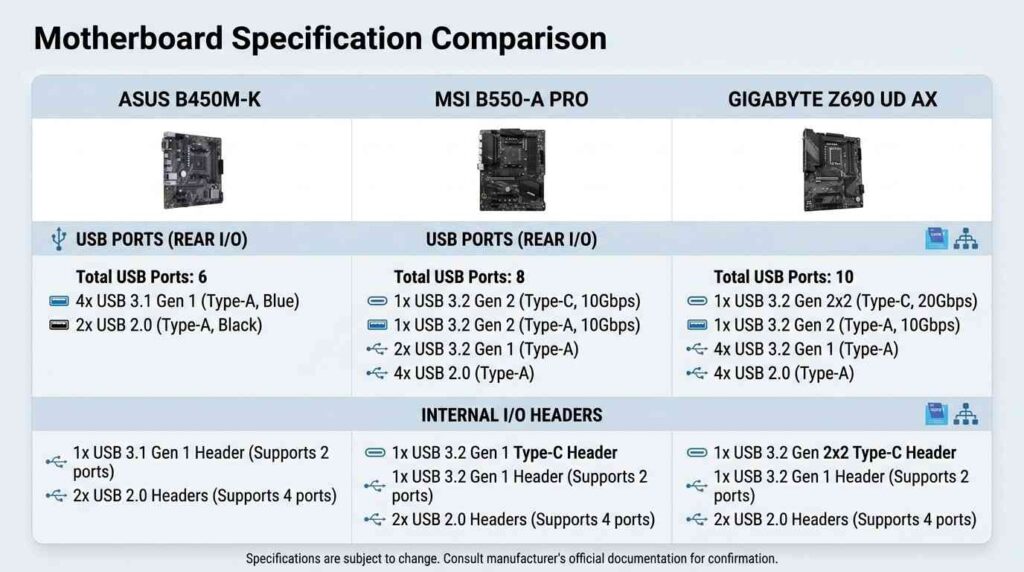
ASUS Prime B450M-K — Budget Board
- Rear I/O: 4 x USB 2.0, 2 x USB 3.2 Gen 1 Type-A, 1 x USB 3.2 Gen 2 Type-A
- Internal headers: 1 x USB 3.2 Gen 1 header (2 ports), 2 x USB 2.0 headers (4 ports)
- Total USB capacity: 13 ports
MSI B550-A PRO — Mid-Range Board
- Rear I/O: 2 x USB 2.0, 2 x USB 3.2 Gen 1, 1 x USB 3.2 Gen 2 Type-A, 1 x USB 3.2 Gen 2 Type-C
- Internal headers: 2 x USB 3.2 Gen 1 headers (4 ports), 2 x USB 2.0 headers (4 ports)
- Total USB capacity: 14 ports
Gigabyte Z690 UD AX — High-End Intel Board
- Rear I/O: 4 x USB 3.2 Gen 2, 2 x USB 3.2 Gen 1, 2 x USB 2.0, 1 x USB-C (USB 3.2 Gen 2×2)
- Internal headers: 1 x USB-C Key-A header, 2 x USB 3.2 Gen 1 headers, 2 x USB 2.0 headers
- Total USB capacity: 18 to 20+ ports
MSI B760M Pro-A — Modern Budget Board (2024)
- Rear I/O: 2 x USB 2.0, 4 x USB 3.2 Gen 1, 1 x USB 3.2 Gen 2 Type-C
- Internal headers: 1 x USB 3.2 Gen 1 header (2 ports), 2 x USB 2.0 headers (4 ports)
- Total USB capacity: 13 ports
As you can see, even budget boards can hit 12 to 13 total ports once you count internal headers. The real difference between budget and high-end boards is the speed of those ports, not just the count.
How Your Chipset Affects USB Port Count
The chipset is a chip on your motherboard that controls how many USB connections, PCIe lanes, and storage devices the board can support. This is one factor no competing article explains clearly, so let’s fix that.
Think of the chipset as a traffic manager. It decides how many USB “lanes” exist for your devices. A budget chipset has fewer lanes. A premium chipset has more, with faster speeds.
Intel Chipsets
- H610 / B760 (budget to mid-range): Support up to 12 USB ports total. Limited USB 3.2 Gen 2 allocation.
- Z790 (high-end): Supports up to 20 USB ports. Includes USB4 40 Gbps, multiple USB 3.2 Gen 2 ports, and Thunderbolt 4/5 support on select boards.
AMD Chipsets
- B650 (mid-range): Supports around 12 to 14 USB ports. Includes USB 3.2 Gen 2 and at least one USB4 capable port on many boards.
- X670E (high-end): Supports up to 16 to 20 USB ports. More USB4 allocations and higher throughput.
CPU-Direct vs Chipset-Routed USB
Some USB ports on your motherboard connect directly to the CPU. These have lower latency and dedicated bandwidth. Other ports route through the chipset and share bandwidth with storage controllers and other I/O. For most users, this difference is invisible. For professional setups with many high-bandwidth devices running at once, CPU-direct ports are preferable for your fastest storage or capture devices.
How Many USB Ports Do You Actually Need?
The right number depends entirely on your use case. Here’s a realistic count for the most common setups.
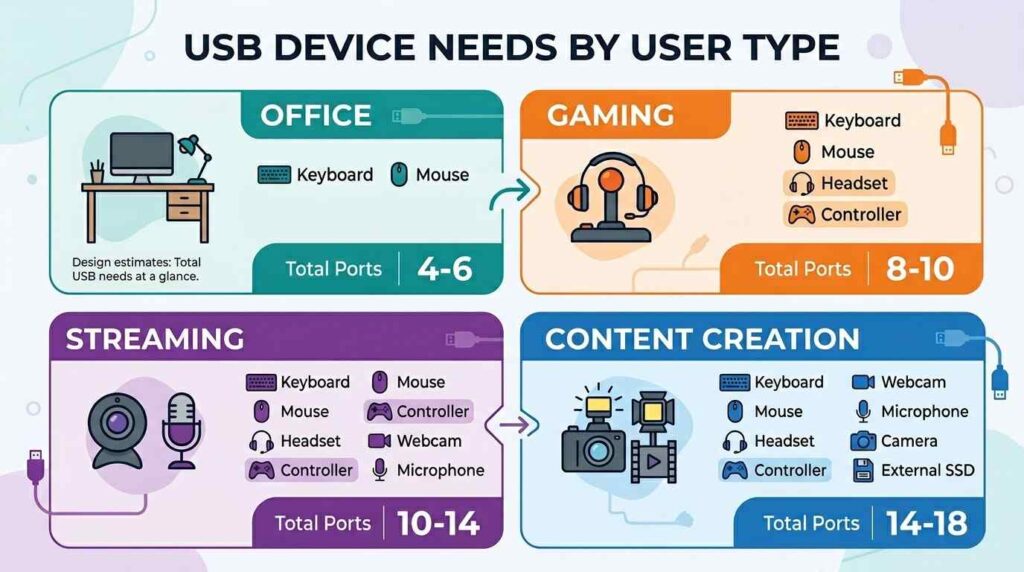
Basic and Office Users: 4 to 6 Ports Is Enough
If you run a keyboard, mouse, and occasionally plug in a flash drive or phone, a budget board’s 4 to 6 ports will serve you well. You’ll rarely feel the pinch.
Gamers: Aim for 8 to 10 Ports
A typical gaming setup uses more ports than people expect. Count them up: keyboard, gaming mouse, headset receiver, controller (wired or charging), webcam, and possibly a stream deck or external hard drive. That’s 6 to 8 ports before you even charge your phone. A mid-range ATX board in the 8 to 10 port range is ideal.
Content Creators and Streamers: 10 to 14 Ports
Add a capture card, camera, audio interface, microphone, external SSD for footage, and an RGB controller on top of the gaming list above. Streamers and content creators should look for boards with at least 10 ports and at least two USB 3.2 Gen 2 connections for fast storage.
Video Editors and Photo Professionals: 12+ Ports with Fast Speeds
Speed matters here as much as count. You want at least two USB 3.2 Gen 2 (10 Gbps) ports or one USB4 port for your fast NVMe external drives. A high-end Z790 or X870E board keeps your workflow moving without bottlenecks.
Industrial and Workstation Users: 12+ Dedicated Ports
Workstations running barcode scanners, touch panels, data loggers, or multiple monitors need both high port counts and USB stability. For these setups, prioritize boards where key ports are CPU-direct rather than chipset-routed.
What to Do When You Don’t Have Enough USB Ports
Good news: running out of USB ports is not a permanent problem. You have four solid solutions, from free to low-cost.
Option 1: Connect Unused Internal Headers to Your Case (Free)
Before buying anything, check whether your motherboard has unconnected internal headers. Pull up your motherboard’s spec sheet, find the header list, and compare it to the cables your case provides. If you have unused headers, connect them and gain free front-panel ports. This is the most overlooked fix.
Option 2: Powered USB Hub (Best for Most People)
A powered hub plugs into one rear USB-A port and gives you 7 to 10 additional connections. The bandwidth is shared between all ports on the hub, so it’s best for low-speed devices like keyboards, mice, headset receivers, and phone chargers. For these uses, you’ll never notice the sharing. Cost ranges from $15 to $40. Brands like Anker and Sabrent are reliable choices.
You may also like these accessories for your setup: Best Budget Speakers for PC and Best Wireless Earphones.
Powered vs Unpowered Hub: Always use a powered hub (one with its own AC adapter) if you plan to charge devices from it. Unpowered hubs draw power from your motherboard’s USB port, which has a limited power budget and can cause instability.
Powered vs Unpowered Hub: Always use a powered hub (one with its own AC adapter) if you plan to charge devices from it. Unpowered hubs draw power from your motherboard’s USB port, which has a limited power budget and can cause instability.
Option 3: PCIe USB Expansion Card (Best for Power Users)
This card slides into an empty PCIe x1 slot on your motherboard. It adds 4 to 10 completely independent USB ports with their own dedicated bandwidth, no sharing. This is what streamers, video editors, and workstation users choose when performance matters. Cost is around $30 to $50, and installation takes about two minutes.
Option 4: USB-C Docking Station (Best for Hybrid Setups)
If your motherboard has a USB-C or Thunderbolt port, a docking station connects through that single cable and expands into 8 to 12 extra ports plus HDMI, Ethernet, and SD card slots. This is a great option for work-from-home setups where you switch between a desktop and a laptop regularly. One docking station serves both machines.
| Solution | Extra Ports | Cost | Bandwidth Shared? | Best For |
|---|---|---|---|---|
| Unused headers (free) | 2 to 4 ports | $0 | No | Anyone with open headers |
| Powered USB Hub | 7 to 10 ports | $15–$40 | Yes | Low-speed peripherals |
| PCIe USB Card | 4 to 10 ports | $30–$50 | No | Streamers, editors, power users |
| USB-C Docking Station | 8 to 12 ports | $50–$150 | Partial | Hybrid desktop/laptop users |
Common Mistakes When Counting USB Ports
Mistake 1: Counting Only Back Panel Ports
The rear I/O gives you a visible count, but it misses everything connected through internal headers. You could have 4 visible ports and 8 more available through headers you haven’t connected yet.
Mistake 2: Confusing USB Connector Shape with Speed
A USB-C port doesn’t automatically mean fast. Some USB-C ports run at USB 2.0 speeds (480 Mbps). Always check the spec sheet, not just the connector type.
Mistake 3: Using a Cheap Unpowered Hub for Charging
Unpowered hubs pull all their power from one motherboard USB port. That port has a shared power budget. Charge too many devices through an unpowered hub and things start disconnecting or failing to charge.
Mistake 4: Ignoring Internal Header Count When Buying a New Case
If your new case has front-panel USB-C but your motherboard has no Key-A header, that front port is useless. Check header compatibility before you buy a case.
Mistake 5: Plugging a Fast Device into a USB 2.0 Port and Blaming the Device
If your external SSD is copying files slowly, check which port it’s connected to. A USB 3.2 Gen 2 SSD running through a black USB 2.0 port will be capped at 480 Mbps, about 10% of its top speed.
Mistake 6: Forgetting AIO Coolers Need a USB Header
Many AIO liquid coolers use a USB 2.0 header for firmware control and lighting. If you don’t account for this when planning your build, you may find yourself short on headers for your front-panel connections.
Frequently Asked Questions
Q1. How many USB ports does a motherboard have?
Most motherboards have between 6 and 14 USB ports in total. Budget boards offer 4 to 6 ports. Mid-range ATX boards provide 6 to 10 ports. High-end gaming and workstation boards often have 12 to 20+ ports. This total includes both rear panel ports and front-panel ports connected through internal headers.
Q2. How do I check what USB ports my PC has?
The five best methods are: (1) check your motherboard’s official spec page online, (2) open Windows System Information (Windows + R, then type msinfo32), (3) run wmic path Win32_USBController get Name in Command Prompt, (4) open Device Manager and expand Universal Serial Bus controllers, or (5) physically count the rear panel and front panel ports and add internal headers.
Q3. Where are the USB ports on my motherboard?
Visible USB ports sit on the rear I/O panel, the metal plate on the back of your PC. Additional USB ports are connected via internal pin headers on the motherboard PCB, usually near the bottom edge of the board. These headers power your case’s front-panel USB ports.
Q4. What happens if I plug a USB 2.0 device into a USB 3.0 port?
It works perfectly fine. USB is backward compatible, meaning older devices run in newer ports without any damage or errors. The device will just operate at USB 2.0 speeds (480 Mbps) rather than the port’s full 5 Gbps. You’re not losing anything by doing this.
Q5. Can I add more USB ports to my PC?
Yes. Your easiest options are connecting unused internal headers to your case, adding a powered USB hub (7 to 10 extra ports for $15 to $40), or installing a PCIe USB expansion card ($30 to $50) for fully dedicated, fast ports. If you have a USB-C or Thunderbolt port, a docking station gives you the most connections in one go.
Q6. Do all motherboards have USB Type-C ports?
No. Budget boards and boards made before 2021 may not have any USB-C ports on the rear I/O. Most mid-range and high-end boards released since 2022 include at least one USB-C port. High-end 2025-2026 boards often include USB-C with USB4 or Thunderbolt 4/5 support.
Q7. How do I find my motherboard model to check USB specs?
Press Windows + R, type msinfo32, and press Enter. Look for BaseBoard Manufacturer (the brand) and BaseBoard Product (the model name). Then search that model on the manufacturer’s website to find the full USB specification list.
Q8. How many USB ports do I need for gaming?
Most gaming setups need 8 to 10 USB ports. A typical gaming desk uses: a keyboard, gaming mouse, headset receiver, controller (wired or charging cable), webcam, and possibly a stream deck, external drive, or capture card. Plan for at least 8 ports to avoid constantly swapping cables.
Q9. Does mini-ITX have fewer USB ports than ATX?
Yes, generally. Mini-ITX boards are physically smaller (170mm x 170mm vs 305mm x 244mm for ATX), so there’s less room for ports and headers. Expect 4 to 6 USB ports on a typical mini-ITX board, versus 8 to 14 on a full ATX board.
Final Thoughts
Now you know exactly how to answer the question: how many USB ports does my motherboard have. The quick answer is 6 to 14 for most boards, but the real answer depends on your specific model, chipset, and how many internal headers you’ve connected.
The single most important takeaway is to count both the rear panel ports and the internal header ports together. Most people double their available USB connections just by connecting unused case headers they already have.
If you’ve counted everything and still need more ports, a powered USB hub solves the problem for under $30 for most users. For professional setups that need full dedicated bandwidth, a PCIe expansion card is the cleaner solution. Either way, running out of USB ports is a solvable problem, and you now have everything you need to solve it.
