

Quick Answer Box
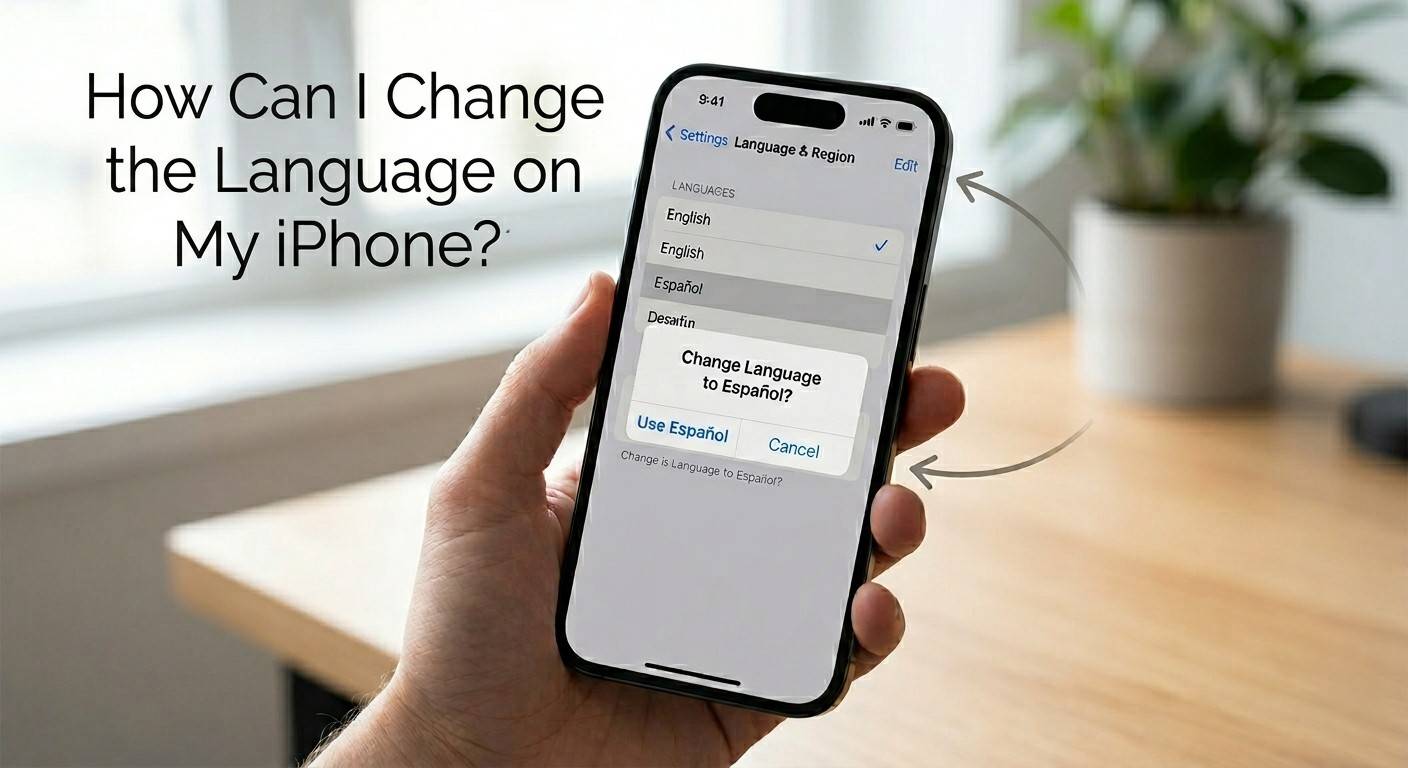
To change the language on your iPhone, go to Settings → General → Language & Region → Add Language. Select your preferred language and tap Use [Language] to confirm. Your iPhone restarts in about 30 seconds and displays everything in the new language. No data is lost.
Introduction
You can change the language on your iPhone in less than 2 minutes right from the Settings app.
Whether your phone is stuck in the wrong language, you just moved to a new country, or you want to practice a foreign language, iOS makes it easy. Your iPhone supports over 40 languages, and switching between them takes just a few taps.
This guide covers everything: system language, keyboard, Siri, and individual app language including what to do when you can’t even read the current settings.
What Happens When You Change iPhone Language?
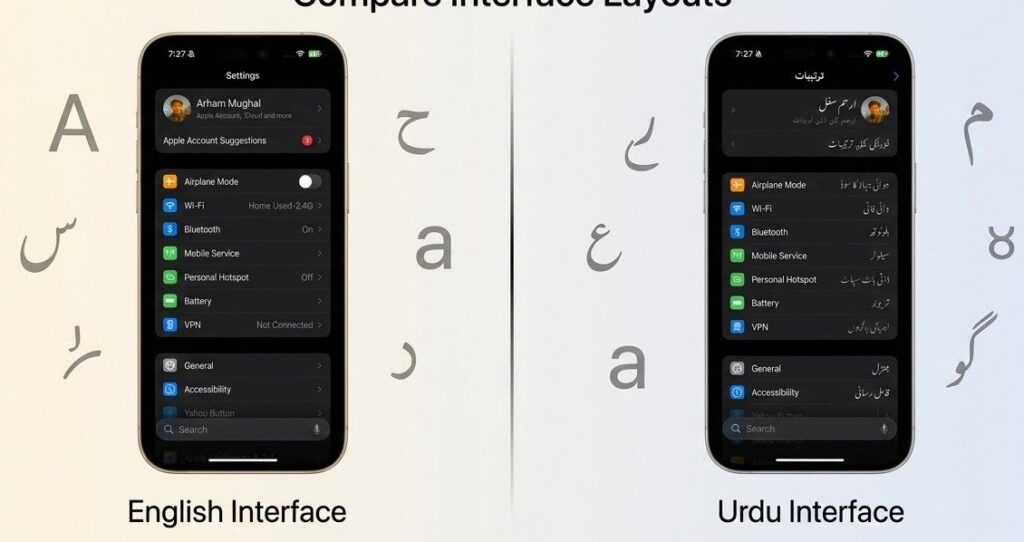
Before you switch, it helps to know what actually changes and what stays the same.
What changes:
- The entire iOS interface (menus, Settings, Home Screen labels)
- Pre-installed Apple apps like Safari, Messages, and Calendar
- Date and time format (may shift to DD/MM/YYYY or 24-hour clock depending on region)
- The default language used by new apps
What does NOT change automatically:
- Your keyboard language (you must update it separately)
- Siri’s language (requires a separate change)
- Third-party apps like WhatsApp, Instagram, or Spotify
- Your photos, contacts, messages, or any personal data
Nothing gets deleted. The change is completely reversible.
How Can I Change the Language on My iPhone? (System Language Steps)
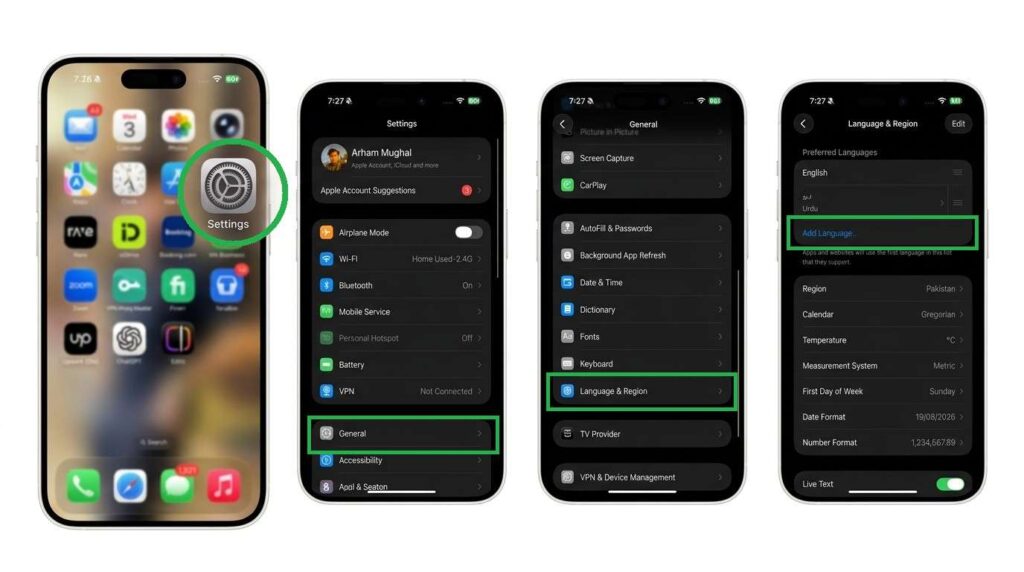
This is the main method. It changes the display language across your entire iPhone.
Step 1: Open the Settings app. It looks like a gray gear icon on your Home Screen.
Step 2: Scroll down and tap General.
Step 3: Tap Language & Region. This is in the 4th section down inside General.
Step 4: Tap Add Language.
Step 5: Scroll through the list or use the search bar at the top to find your language. Languages appear in their native script for example, German shows as “Deutsch” and Spanish shows as “Español.”
Step 6: Tap your chosen language. A popup asks: “Would you like to use [Language] as your primary language?”
Step 7: Tap Use [Language] to confirm.
Your iPhone will restart briefly. The whole process takes about 30 seconds. When it comes back on, everything is in the new language.
Tip: You can have multiple languages in your Preferred Languages list. Drag them to reorder priority anytime.
Read Also: Disable Pop-up Blocker on iPhone
How to Change iPhone Language Back to English
Accidentally switched to a language you don’t understand? Don’t panic here’s how to get back.
Step 1: Open Settings (gray gear icon).
Step 2: Tap General it’s the second major group in Settings, also has a gear icon.
Step 3: Tap Language & Region it’s the 4th item in the 4th section of General, with no icon next to it.
Step 4: Find English in your Preferred Languages list. Press and hold the three-line icon on the right side, then drag English to the top.
Step 5: A red confirmation option appears at the top tap it to confirm.
If English isn’t in your list at all, tap Add Language, search for “English,” select it, and set it as your primary language.
Voice tip: You can also say “Open Language Settings” to Siri if Siri is already set up.
How to Navigate iPhone Settings When You Can’t Read Them
This is the most overlooked situation and the most stressful. Your iPhone is in a language you can’t read at all.
Here’s how to navigate by icon and position, not by text:
| What You’re Looking For | How to Find It |
|---|---|
| Settings app | Gray gear icon on Home Screen |
| General | Second major section; also has a small gear icon |
| Language & Region | 4th group in General; no icon, text only |
| Add Language | Blue-colored text near the top of the first block |
| Preferred Languages | The list at the top of the Language & Region screen |
The layout stays the same regardless of language. Use the visual positions and icon shapes to navigate your way back.
How to Change the Keyboard Language on iPhone
Changing your system language does not automatically update your keyboard. You have to do this separately.
Steps:
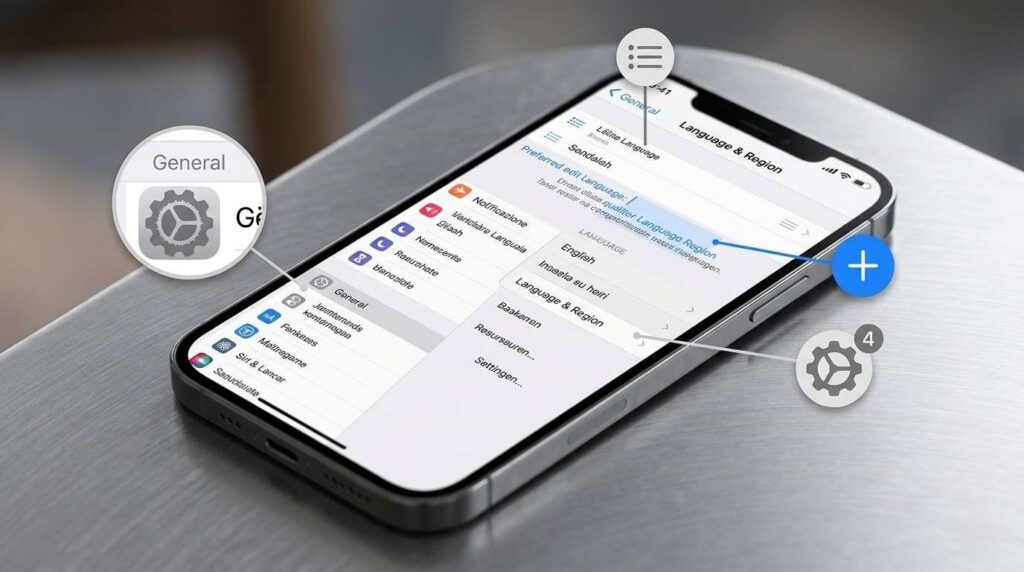
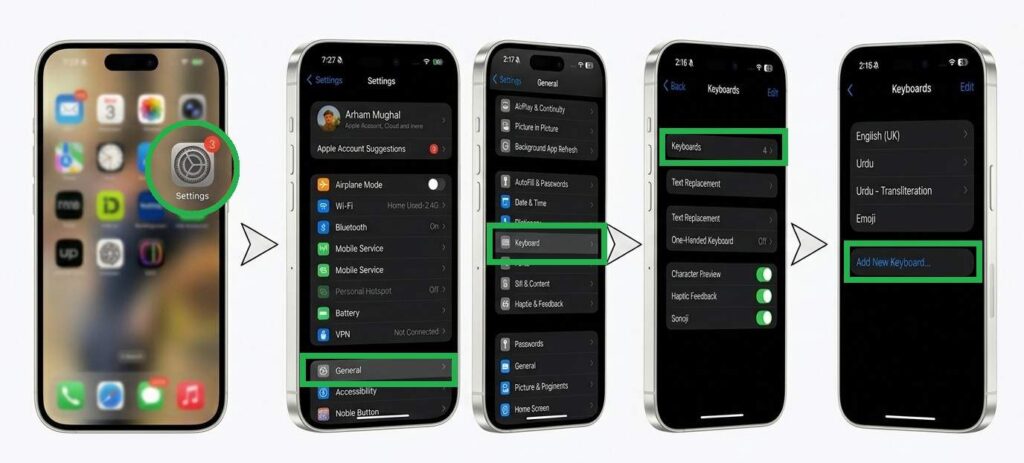
- Go to Settings → General → Keyboard → Keyboards
- Tap Add New Keyboard
- Search for or scroll to your language
- Tap it to add
To switch between keyboards while typing, tap the globe icon (🌐) in the bottom-left corner of your keyboard. Each tap rotates to the next keyboard in your list.
To remove a keyboard: swipe left on its name in the Keyboards list and tap Delete.
Note: Some languages also change your autocorrect and spellcheck behavior. This is normal.
How to Change Siri’s Language on iPhone
Siri works in one language at a time. If you changed your system language but Siri still speaks in the old one, you need to update it manually.
On iOS 18 (with Apple Intelligence):
- Go to Settings → Apple Intelligence & Siri
- Tap Language
- Select your preferred language
- Tap Change Language to confirm
On iOS 17 and earlier:
- Go to Settings → Siri & Search
- Tap Language
- Choose your language and confirm
You can also change Siri’s voice (accent and gender) under the Siri Voice option in the same menu. After changing Siri’s language, you may need to re-enable “Hey Siri” for it to work properly.
How to Change Language for Individual Apps
Did you know you can set a different language for specific apps without changing your whole phone? This feature has been available since iOS 13.
How to do it:
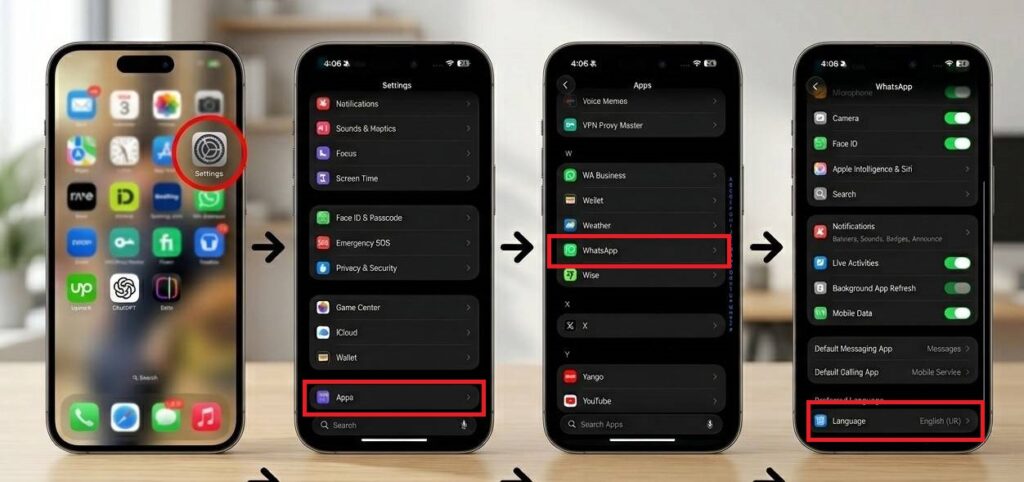
- First, add the language to your Preferred Languages list (see the system language steps above)
- Go to Settings
- Scroll down to the app you want to change
- Tap the app, then tap Language
- Select your preferred language for that app
This is useful if you use one app in French but want the rest of your phone in English or if you’re learning a language and want to practice in specific apps.
Limitation: Not all apps support per-app language. If you don’t see a Language option under the app in Settings, the developer hasn’t built that support in yet.
Language vs. Region What’s the Difference?
A lot of people mix these up. They are two separate settings, and you can use them independently.
Language controls what language the text appears in across your iPhone.
Region controls the format of things like:
- Dates (MM/DD/YYYY vs DD/MM/YYYY)
- Time (12-hour vs 24-hour clock)
- Currency symbols ($, €, £, ₹)
- Number punctuation (1,000.00 vs 1.000,00)
For example, you can set your language to English but your region to Germany. You’ll see English text everywhere, but dates will show in the European format, and you’ll see € as the currency symbol.
To change your region: Settings → General → Language & Region → Region.
For more details, see Apple’s guide on Language vs. Region.
Troubleshooting: iPhone Language Change Not Working
App Not Changing to New Language
Some apps especially third-party ones don’t update when you change the system language. Fix this by:
- Going to Settings → [App Name] → Language and changing it manually
- Checking if the app has a language setting inside the app itself
- Updating the app to the latest version from the App Store
Siri Still Speaking Old Language
Siri requires a manual update. Follow the Siri steps above. After changing, re-enable “Hey Siri” in Settings → Apple Intelligence & Siri.
Language Not Available in List
Some newer languages require a newer iOS version. For example, Hindi, Urdu, Bangla, and 7 other regional languages were added in iOS 18.4.1.
To update: Settings → General → Software Update → Update Now.
iPhone Still Shows Old Language After Restart
Go back to Settings → General → Language & Region and make sure your chosen language is at the top of the Preferred Languages list. If it’s not at position #1, drag it there using the three-line handle.
FAQ
Q: Does changing the language on my iPhone delete my data? No. Changing the language only affects how the interface looks. Your photos, contacts, messages, apps, and all other data stay completely safe.
Q: How many languages does iPhone support? iPhone supports over 40 languages for the system interface. iOS itself can be localized into 100 languages and regions total, depending on your version.
Q: Can I use my iPhone in two languages at the same time? Yes. You can add multiple languages to your Preferred Languages list. The iPhone uses the top language for the interface. However, Siri can only work in one language at a time.
Q: How long does it take to change the iPhone language? About 30 seconds. Your iPhone restarts briefly to apply the change, then comes back on in the new language.
Q: Why didn’t my app change language when I changed my iPhone language? Third-party apps often have their own language settings. Go to Settings → [App Name] → Language to change it manually. If you don’t see that option, the app may not support per-app language yet.
Q: How do I change Siri’s language on iPhone? Go to Settings → Apple Intelligence & Siri (or Siri & Search on older iOS) → Language. Select your preferred language and confirm. Siri works in one language at a time.
Q: Can I change my iPhone language without losing my current language? Yes. Your old language stays in the Preferred Languages list. You can drag it back to position #1 at any time to revert, without going through the Add Language process again.
Q: What new languages were added to iPhone recently? iOS 18.4.1 added full system-language support for 10 new regional languages: Hindi, Urdu, Bangla, Kannada, Malayalam, Marathi, Odia, Punjabi, Tamil, and Telugu.
Read Also: Delete Duplicate Contacts on iPhone
Conclusion
Changing the language on your iPhone is quick and simple. Go to Settings → General → Language & Region → Add Language, pick your language, and confirm. The whole thing takes about 30 seconds.
Just remember: your keyboard and Siri won’t update automatically. You’ll need to change those separately using the steps in this guide. And if individual apps still show the old language, head into Settings, find the app, and update its language from there.
Bookmark this guide so you always have it handy especially if your iPhone ends up in a language you can’t read. The icon-based navigation tips in this article will get you back to English (or any language you want) even when you can’t read a single word on screen.

9 Comments
Vic88vingroup, I’m intrigued. You a big player? Gonna give your site a try. Live casino games better be on point! vic88vingroup
OkWin App Download, so easy to find and download. Good to go! Check it out! Download: okwinappdownload
Thinking of checking out 007betgame tonight. Any tips or tricks for a first-timer? Heard the slots are where it’s at. 007betgame
I was looking for a new online spot and stumbled upon bdwenbet. Pretty solid experience overall. Site’s easy to navigate and the games are good. Give it a shot at bdwenbet!
Just signed up at phjili333 and had a decent run. Nothing crazy, but it was a good way to kill some time and maybe win a bit. See what you can win at phjili333!
For all my fellow slot lovers, I found t6thailandslot. They’ve got some really cool Thai-themed slots that are worth trying out. Check out the spinning action at t6thailandslot!
https://shorturl.fm/Pnl9W
https://shorturl.fm/LgR5p
Pingback: How to Pause Location on Find My: 5 Proven Methods