
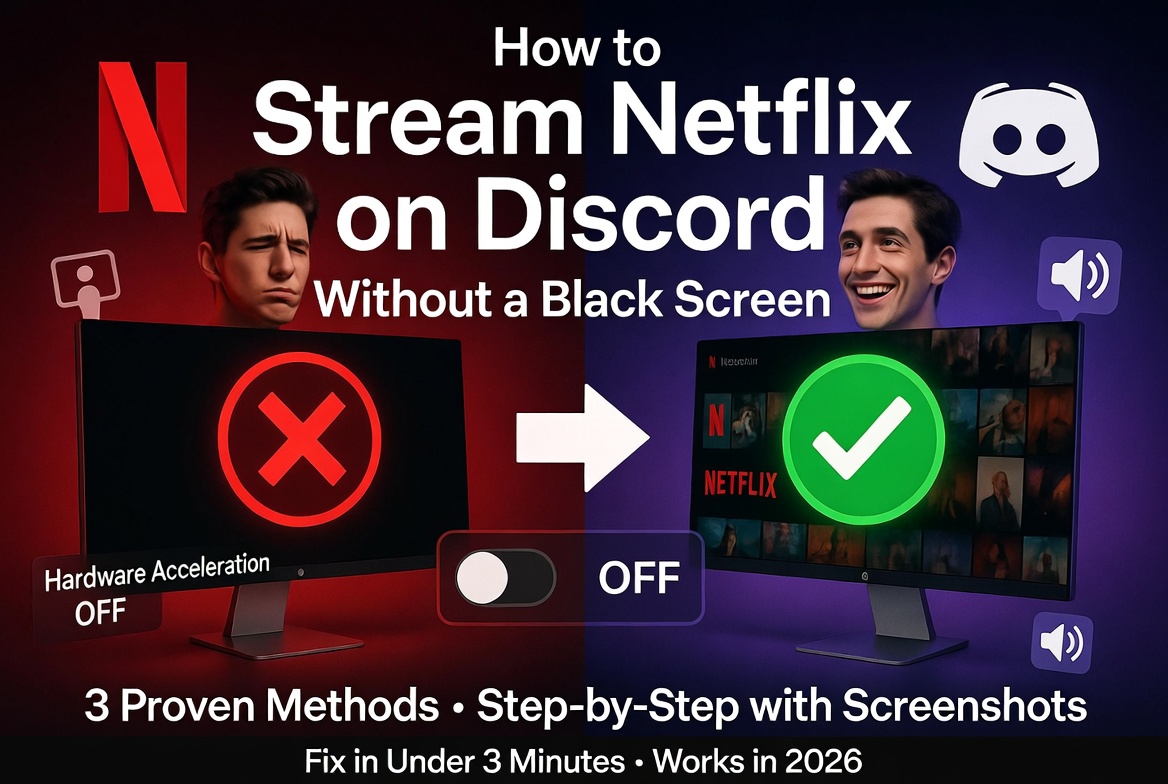
Hosting a Netflix watch party on Discord but getting a black screen every time? You are not alone, and the fix is simpler than you think. This guide walks you through 3 proven methods, step by step, with screenshots for every single action.
⚡ Quick Answer: The black screen appears because Netflix’s DRM protection conflicts with hardware acceleration in your browser or Discord. The fastest fix is to turn off hardware acceleration in Google Chrome (Settings → System). If that alone doesn’t work, also turn it off inside Discord, or use the Registered Games method below.
Why Does Netflix Show a Black Screen on Discord?
How to stream Netflix on Discord is one of the most searched questions online in 2026, and that black screen is the #1 reason why. You are not doing anything wrong. This happens to almost everyone the very first time they try it, and the fix takes under three minutes once you know what causes it.
The black screen comes from a clash between two things running at the same time: Netflix’s DRM (Digital Rights Management) and your device’s hardware acceleration setting.
Netflix DRM is a built-in copyright protection system. Its job is to stop Netflix content from being captured or recorded without permission. When Discord tries to grab your screen to share it in a voice channel, Netflix’s DRM detects that attempt and blocks the video, which is why your friends see a black screen even though your own screen looks perfectly fine.
Hardware acceleration pushes video rendering to your GPU (graphics card) instead of the CPU. This makes video playback smoother, but it also makes the DRM system much more aggressive about blocking screen captures, because GPU-level rendering is harder to control. Turn hardware acceleration off, and Netflix’s DRM relaxes enough to let Discord share the video without blocking it.
“Switch off hardware acceleration and it works wonderfully. Hardware acceleration OFF on both apps — works like clockwork.”
— Community member, Techzeel Tech Forum, March 2026
In short: turn off hardware acceleration in your browser, in Discord, or both, and the black screen disappears. That is all there is to it.
💡 Before you start: Streaming Netflix on Discord only works on the Discord desktop app (Windows or Mac). The mobile app does not support this. You also need a Netflix account and an active internet connection of at least 10 Mbps upload speed.
Disable Hardware Acceleration in Your Browser
Start here — works for Chrome, Firefox, Opera, Edge • Success rate ★★★★★
This is the most recommended fix across every major tech community in 2026. Disabling hardware acceleration in your browser alone resolves the black screen in the vast majority of cases, no other changes needed.
The steps differ slightly depending on which browser you use, so find yours below. Google Chrome is covered first because it is the most widely used and most reliable browser for Discord and Netflix streaming.
Google Chrome (Recommended Browser)
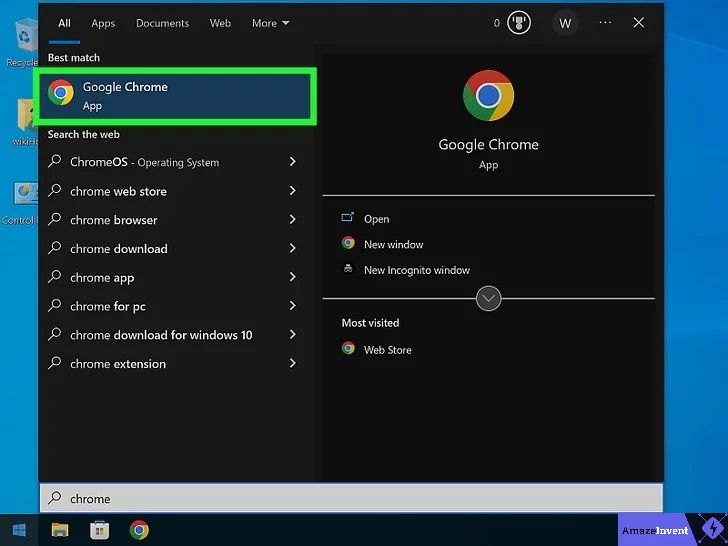
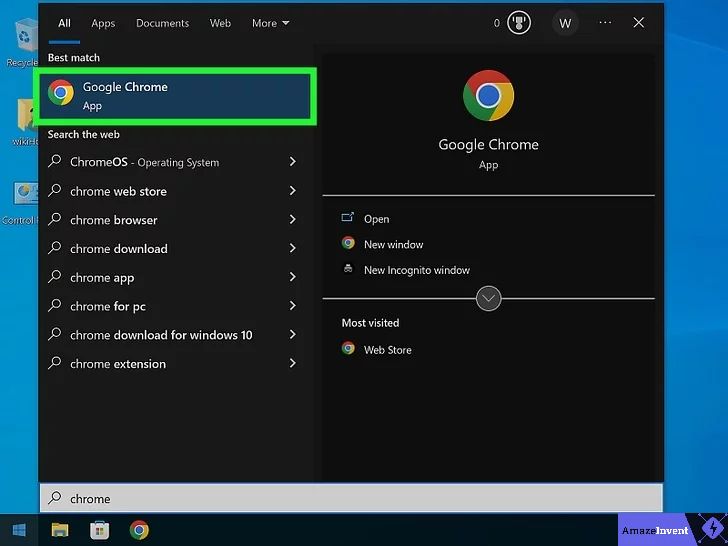
- Open Google Chrome. You can search for it in the Windows Start menu or click its icon on your taskbar or desktop. Make sure Chrome is fully open before continuing.
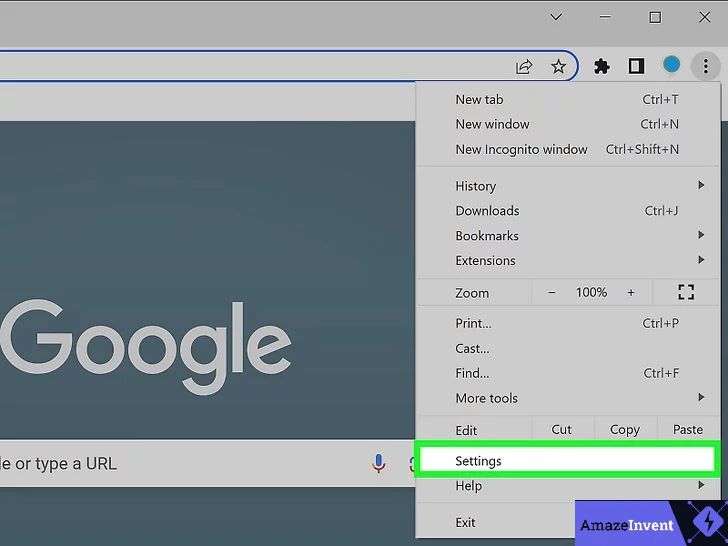
2. Click the three vertical dots (⋮) in the top-right corner of Chrome. A dropdown menu will open. Select Settings from the list.
3. Inside Settings, scroll down in the left-hand sidebar and click System. On the right side, you will see a toggle labeled “Use graphics acceleration when available.” Click that toggle to turn it OFF.
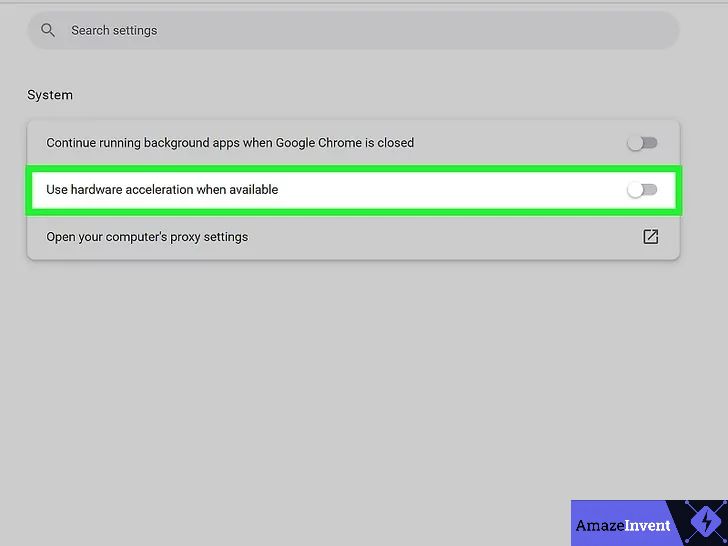
4. A Relaunch button will appear next to the toggle. Click it to fully restart Chrome. The setting only takes effect after a complete restart; do not just close a tab, relaunch the entire browser.
Once Chrome restarts, open Netflix, go back to Discord, join a voice channel, and click Share Screen. Your friends should now see Netflix playing instead of a black screen.
Chrome tip: After relaunching, make sure Netflix is open in Chrome before you start the Discord screen share. Starting the share first and then opening Netflix can sometimes still trigger the black screen.
Mozilla Firefox
- Open Firefox and click the three horizontal lines (☰) in the top-right corner. Select Settings.
- Stay on the General tab and scroll down until you find the Performance section. First, uncheck the box next to “Use recommended performance settings.” A new option will appear below it. Then uncheck “Use hardware acceleration when available.”
- Close and reopen Firefox completely. Open Netflix and try the Discord screen share again.
Microsoft Edge
- Open Edge, click the three dots (⋯) in the top-right corner, and go to Settings → System and performance. Toggle off “Use graphics acceleration when available.” Restart Edge.
Edge Warning: In 2026 testing, Microsoft Edge did not reliably fix the black screen even after disabling hardware acceleration. If you use Edge and the problem persists, switch to Google Chrome or Firefox instead.
Opera / Opera GX
- Click the “O” icon in the upper-left corner to open the Opera menu. Go to Settings → Advanced → System. Toggle off “Use hardware acceleration when available.” Restart Opera.
Safari (macOS) Important Limitation
Safari cannot be used for this. Since the macOS Catalina update, Apple removed the hardware acceleration toggle from Safari entirely. You cannot disable it, which means Safari will always produce a black screen when streaming Netflix on Discord. If you are on a Mac, install Google Chrome or Firefox and use that browser instead. Both work perfectly on macOS.
Disable Hardware Acceleration in Discord
Use alongside Method 1 for best results • Success rate ★★★★☆
If turning off hardware acceleration in your browser did not fully fix the problem, the next step is to also turn it off inside Discord. Many users find that doing both together is what finally makes the stream work perfectly.
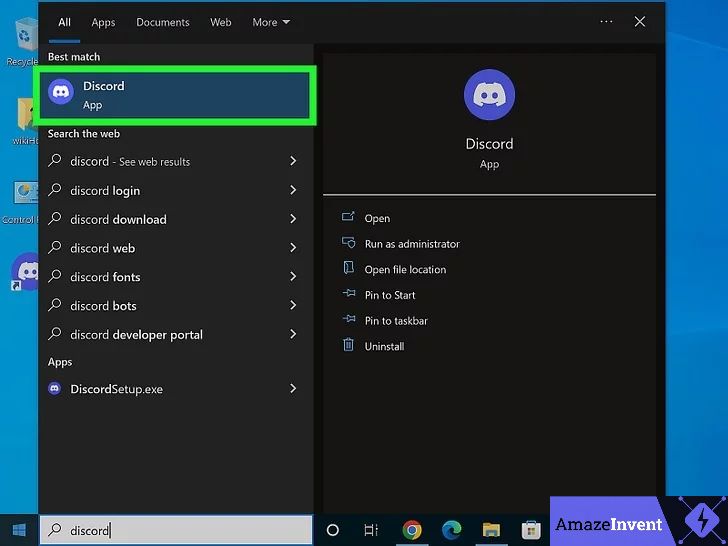
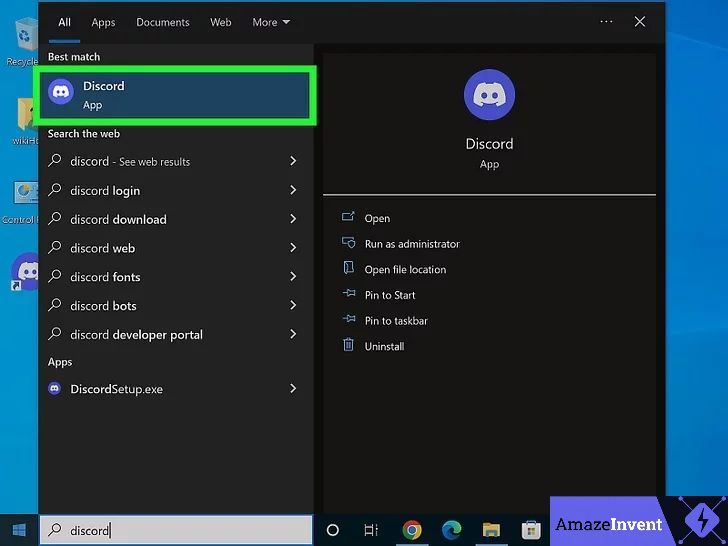
- Open the Discord desktop app. Search for “Discord” in the Windows Start menu and click the app to open it. Make sure you are using the desktop application, not the web browser version of Discord.
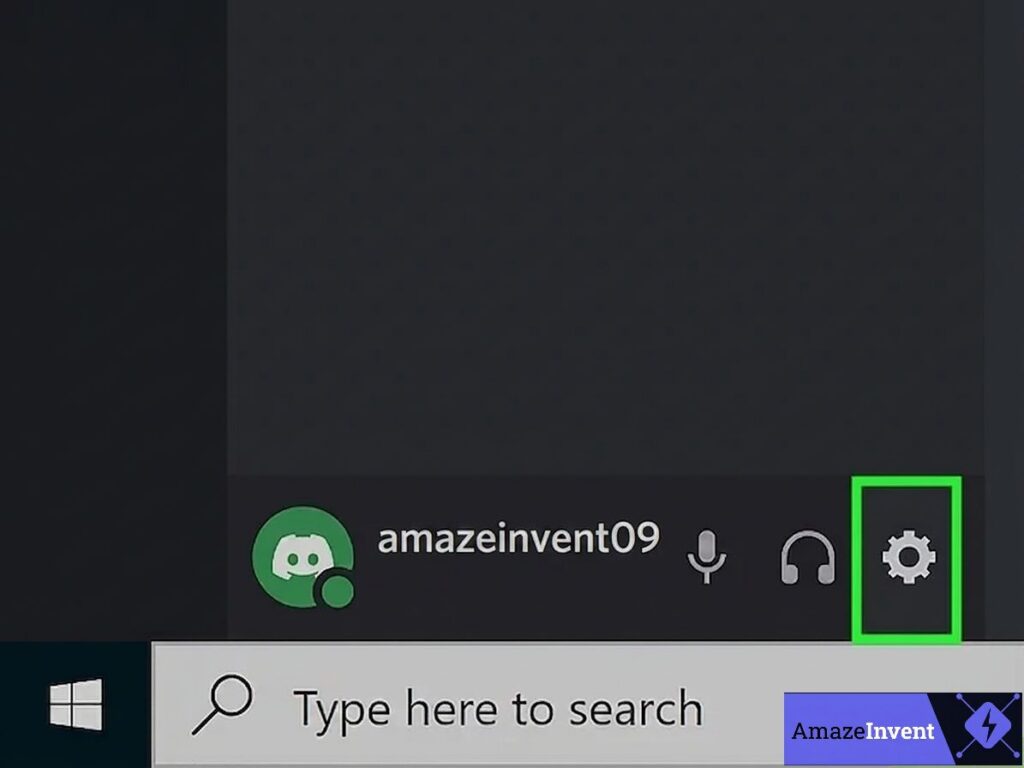
2. At the very bottom-left corner of Discord, you will see a small gear icon (⚙) next to your username. Click it to open User Settings.

3. In the left-hand settings panel, scroll down until you reach the App Settings section. Click on Advanced.
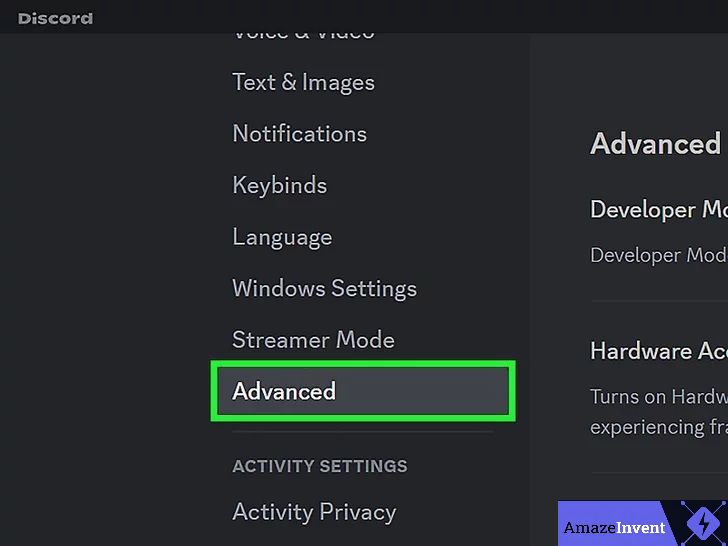
4. On the Advanced page, find the Hardware Acceleration toggle. Click it to turn it OFF. Discord will show a prompt asking you to restart, click Okay, and let Discord relaunch completely. For more details on this setting, you can refer to Discord’s official support page on hardware acceleration.
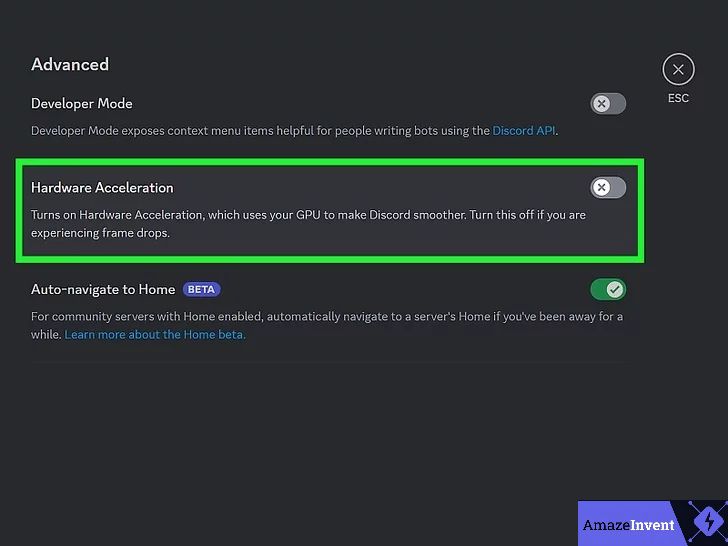
5. Once Discord restarts, rejoin your voice channel and start a screen share. Open Netflix in Chrome (with hardware acceleration already disabled from Method 1). The black screen should now be completely gone.
⚡ Quick Answer: The black screen appears because Netflix’s DRM protection conflicts with hardware acceleration in your browser or Discord. The fastest fix is to turn off hardware acceleration in Google Chrome (Settings → System). If that alone doesn’t work, also turn it off inside Discord, or use the Registered Games method below.
Add Netflix as a Game in Discord (Registered Games)
Best alternative fix — works independently • Success rate ★★★★★
This method takes a completely different approach. Instead of changing hardware settings, you are telling Discord to treat your browser as a “game source.” When Discord recognises it as a game, it uses a different video capture method that sidesteps the DRM black screen altogether.
Start with Netflix, then mention Discord:
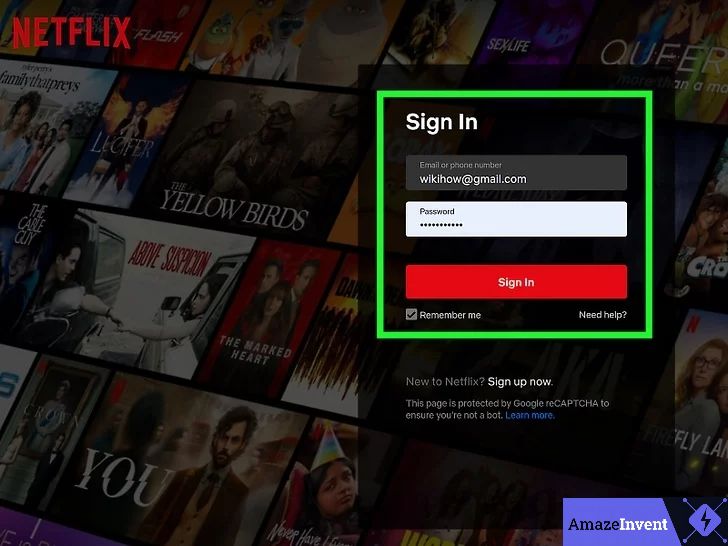
Open Netflix
First, open the Netflix app on your desktop. If you prefer watching Netflix in your web browser, open your browser and sign in to your Netflix account.
Make sure Netflix is running and playing something. If Netflix is not open, it will not appear as a streaming source in Discord.
This method is especially useful if you’ve already disabled hardware acceleration in both Discord and your browser, but you’re still getting a black screen while screen sharing.
2. Open the Discord desktop app. Search for “Discord” in the Windows Start menu, then click the app to launch it.
3. Click the gear icon (⚙) at the bottom-Right corner of Discord to open User Settings.
4. In the left panel, scroll down to the Activity Settings section and click Registered Games.
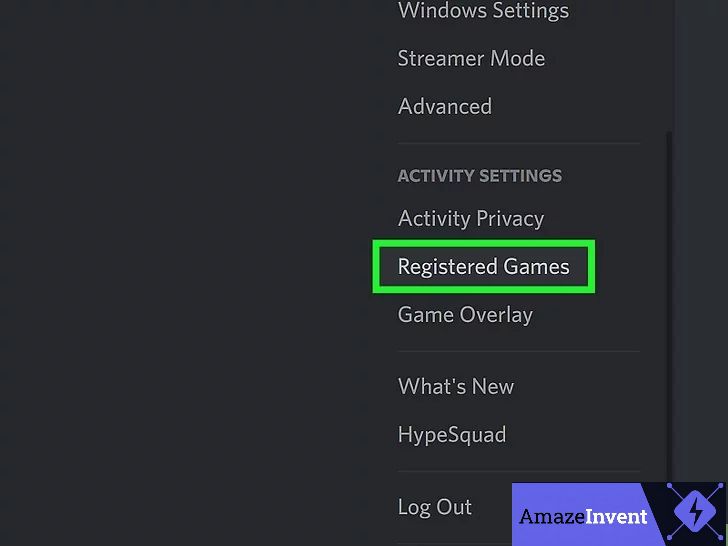
5. On the Registered Games screen, look for the line that reads “Not seeing your game?” and click the blue Add it! link next to it.
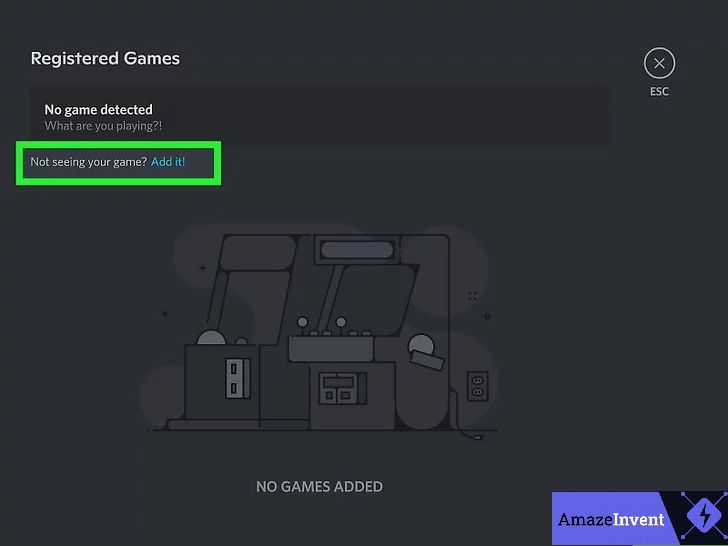
6. A dropdown list will appear showing all currently running applications. Select Google Chrome (or whichever browser has Netflix open).
- If your browser is not in the list, switch back to it, make sure Netflix is actively loaded (not just open in a background tab that is suspended), then return here and try the dropdown again.
- If you have the Netflix desktop app (Microsoft Store), you can select that directly instead.
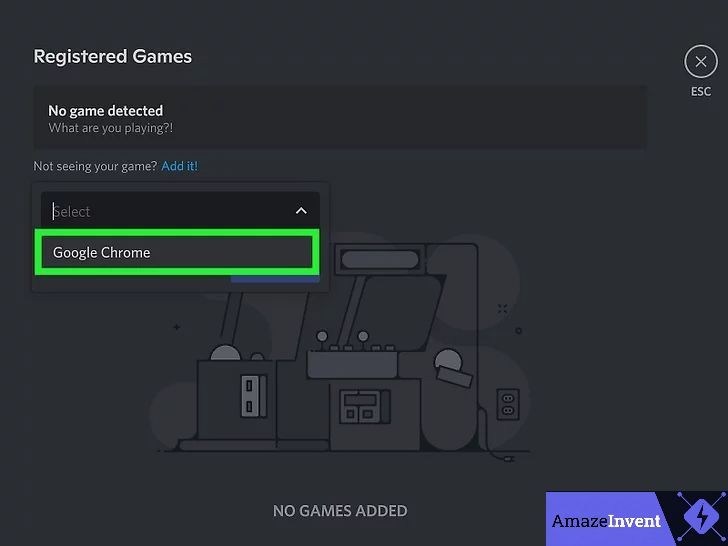
7. Click the Add Game button. Google Chrome will now appear in your Registered Games list.
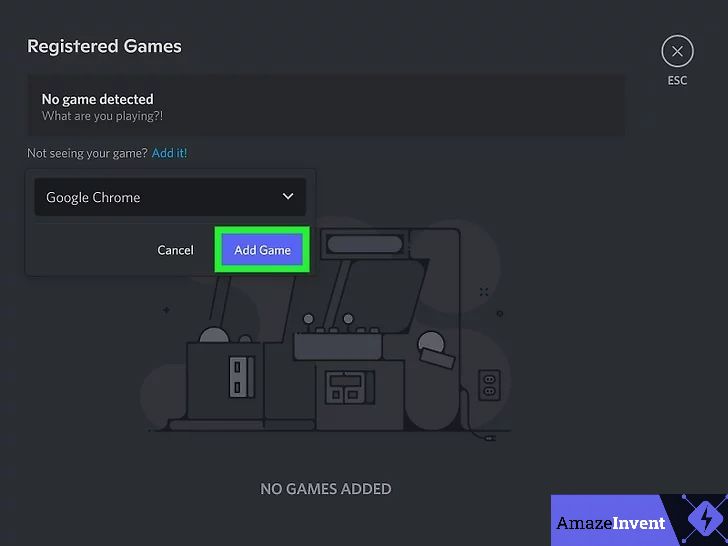
8. Press Esc to close settings. At the bottom of Discord, you will now see a new option: “Stream Google Chrome.” Click it, select your Voice Channel, set stream quality to 720p, and hit Go Live.
Use Window Capture: When Discord asks how you want to share, choose Window Capture (share a specific window) rather than Screen Capture (share your entire display). Sharing just the Chrome window running Netflix produces far fewer black screen errors than sharing the whole screen.
Bonus Tips for a Smooth Netflix Discord Watch Party (2026)
Once you have fixed the black screen, here are the extra steps that separate a frustrating, laggy stream from a genuinely enjoyable movie night with friends.
🎧 Fix Missing Audio
When you click Go Live or Share Screen in Discord, a small window appears before you go live. Make sure the “Share Audio” toggle is switched ON in that window. If your friends can still not hear anything, open Discord’s Voice & Video settings and confirm that audio permissions are correctly set. Also check that Chrome is not muted in your Windows volume mixer (right-click the speaker icon in the taskbar → Open Volume Mixer).
🎬 Set Stream Quality to 720p
Without Discord Nitro, the maximum stream resolution is 720p at 30 FPS. This is actually the sweet spot for watch parties — it looks sharp and runs without buffering on a normal broadband connection. If you have Nitro, you can push to 1080p or higher for a more cinematic experience. Avoid trying to force higher resolutions without Nitro — it causes lag and audio sync issues.
📣 Use Push-to-Talk
Enable Push-to-Talk in Discord’s Voice & Video settings so that background noise on your end does not bleed into the stream during quiet movie moments. Your friends will thank you.
📱 Check Your Internet Speed
A stable upload speed of at least 10 Mbps is the baseline for smooth 720p streaming. If other people on your network are downloading large files or streaming in 4K, ask them to pause temporarily. For the most stable connection, plug in an Ethernet cable instead of using Wi-Fi.
🔧 Update Your Graphics Drivers
Outdated graphics drivers can cause a stubborn black screen that persists even after disabling hardware acceleration everywhere. Visit your GPU manufacturer’s website — NVIDIA, AMD, or Intel — and download the latest driver. This has resolved cases where nothing else worked.
🗑️ Clear Discord’s Cache
If Discord is still misbehaving after all the fixes above, its cache files may be corrupted. On Windows, press Win + R, type %appdata%\Discord\Cache and press Enter. Select all files in that folder and delete them. Restart Discord. A fresh cache can eliminate strange streaming bugs that have no other obvious cause.
📺 Use the Netflix Desktop App on Windows
The Netflix desktop app, available free from the Microsoft Store, tends to be more stable than browser-based Netflix when screen sharing on Discord. It produces fewer DRM conflicts. Download it, open your movie or show inside it, and use Window Capture in Discord to share that specific window. This combination is one of the most reliable setups for Windows users in 2026.
✅ DO THESE
- Disable hardware acceleration in both Chrome AND Discord at the same time.
- Use Chrome or Firefox — they are the most reliable browsers for this in 2026.
- Set stream quality to 720p for lag-free performance without Nitro.
- Use Window Capture instead of full Screen Capture.
- Enable Share Audio before going live in Discord.
⚠️ AVOID THESE
- Do not use the Discord mobile app — Netflix DRM blocks it on all mobile devices.
- Do not use Safari on Mac — the hardware acceleration toggle was removed after macOS Catalina.
- Do not use Microsoft Edge — it consistently fails for this even with the fix applied.
- Do not stream Netflix publicly on Discord — keep sessions private and among friends.
Mobile & Mac Limitations
Can You Stream Netflix on Discord Mobile?
No, not in any reliable way. The Discord mobile app on Android and iOS does not support the same screen-sharing setup as the desktop app. Even if you manage to share your screen on mobile, Netflix’s DRM on mobile platforms will block the video for everyone watching, producing a black screen every time. There is currently no workaround for mobile Netflix streaming on Discord — it is a platform-level restriction.
What About Mac Users?
Mac users are in a slightly trickier position because of Safari. Since macOS Catalina, Apple has removed the ability to manually toggle hardware acceleration in Safari, making it completely unusable for this purpose.
The solution is simple: download Google Chrome or Firefox on your Mac and use that browser for Netflix instead of Safari. Both browsers let you disable hardware acceleration normally, and both work reliably with all three methods in this guide.
Is It Legal to Stream Netflix on Discord?
This is a question many people wonder about, and the straightforward answer is that it sits in a gray area, but small private watch parties with friends are very different from public broadcasting.
Netflix’s Terms of Service are written to protect against large-scale public distribution of their content. A handful of friends watching together in a private Discord server is a much smaller, personal context, and Netflix has not pursued action against users for private watch parties of this kind.
Important: This guide covers only native Discord screen sharing. We do not cover or encourage any method that bypasses Netflix’s DRM protection, records Netflix content, or uses unauthorized third-party tools. Always keep your watch party sessions private and restricted to friends with their own Netflix accounts.
If you want a fully above-board alternative, Teleparty (formerly Netflix Party) is a browser extension that syncs Netflix playback across multiple viewers and includes a group chat. Everyone needs their own Netflix account, but it works completely within Netflix’s official terms. It is a great option if Discord streaming is giving you persistent trouble.
If you and your friends want to watch a title not available in your country, you can also change your Netflix region with a VPN to unlock more content for your watch party.
Frequently Asked Questions
Why does Netflix show a black screen when I share my screen on Discord?
The black screen is caused by a conflict between Netflix’s DRM (Digital Rights Management) protection and your browser’s or Discord’s hardware acceleration settings. Netflix’s DRM detects GPU-accelerated screen capture as a potential copyright threat and blocks the video output. The fix is to disable hardware acceleration in Chrome (Settings to System) and in Discord (User Settings to Advanced).
Which browser is best for streaming Netflix on Discord in 2026?
Google Chrome is the top choice, followed by Mozilla Firefox. Opera and Opera GX also work reliably. Microsoft Edge consistently fails even with the fix applied, and Safari on Mac cannot have hardware acceleration disabled after macOS Catalina, making it unusable for this purpose.
My friends can hear audio but still see a black screen — why?
This means hardware acceleration is still enabled somewhere. Make sure you have disabled it in both your browser AND Discord, not just one. Also, try switching from Screen Capture (entire display) to Window Capture (just the Chrome window with Netflix). That single change resolves it in many cases.
Does streaming Netflix on Discord require Discord Nitro?
No, all three methods work without Discord Nitro. Without Nitro, your stream quality is capped at 720p at 30 FPS. With Nitro, you can unlock 1080p streaming at a higher frame rate for a sharper picture.
How do I get audio working when streaming Netflix on Discord?
When you click Go Live or Share Screen, make sure the “Share Audio” toggle is turned ON before you go live. If audio is still missing, check that your browser is not muted in Windows Volume Mixer, and verify that audio permissions are correctly configured in Discord’s Voice & Video settings.
Can I stream Netflix on Discord without a black screen on mobile?
No. Netflix streaming on Discord mobile is not supported due to DRM restrictions on Android and iOS. This is a platform-level limitation; there is no current workaround. You need to use the Discord desktop app on a Windows PC or Mac.
Does this fix work for Hulu, Disney+, HBO Max, and other streaming services?
Yes. The same DRM and hardware acceleration conflict affects all major streaming platforms. The identical fix works for Hulu, Disney+, HBO Max, Amazon Prime Video, Canal+, and Peacock. Disable hardware acceleration in your browser and Discord, and the black screen will be gone on any of those platforms too.
What stream quality should I use for a Netflix Discord watch party?
Without Nitro, use 720p at 30 FPS, it looks great and runs without lag on a standard broadband connection. With Nitro, go for 1080p at 60 FPS. Avoid pushing for 4K unless your upload speed is exceptionally fast, as it typically causes lag and audio sync problems.
What is Teleparty, and should I use it instead of Discord?
Teleparty (formerly Netflix Party) is a browser extension that syncs Netflix playback and adds a group chat. Everyone needs their own Netflix account, but it requires no screen sharing and is 100% within Netflix’s terms. It is a great alternative if Discord streaming keeps giving you trouble, though it lacks Discord’s voice chat, community, and server features.
My stream is blurry even at 720p — how do I fix it?
Blurry streams are almost always caused by a slow or unstable internet connection. Check that your upload speed is at least 10 Mbps and that no one else on your network is using heavy bandwidth. Switching from Wi-Fi to a wired Ethernet connection usually makes a significant difference in both sharpness and stability.
Quick Summary: 3 Methods at a Glance
Final Thoughts
Streaming Netflix on Discord without a black screen is completely doable once you understand the cause. The DRM + hardware acceleration conflict is the root of the problem every single time, and disabling it takes under three minutes.
Try First
Disable hardware acceleration in Google Chrome → Settings → System → toggle OFF → Relaunch.
If Needed
Also disable hardware acceleration in Discord → User Settings → Advanced → toggle OFF → restart.
Backup Fix
Add Chrome as a Registered Game in Discord under Activity Settings, then use Window Capture to Go Live.
Final Checks
Share Audio ON • Stream quality 720p • Push-to-Talk enabled • 10 Mbps+ upload speed.
Follow these steps and your next Netflix watch party on Discord will run smoothly — no black screen, no lag, no frustration. Enjoy the movie. 🍿

25 Comments
Thanks for the effort—this is quality content.
https://shorturl.fm/Wagy4
Pingback: How to Stream Netflix on Discord Without a Black Screen (2026 Updated Guide) – Skyteck
https://shorturl.fm/XzZiR
https://shorturl.fm/8e7wD
A focused insight that sharpens understanding across the topic.
The yoast seo premium null I installed even includes the advanced RSS settings that improved my blog’s distribution.
Clear and useful insights.
https://shorturl.fm/BY1iy
https://shorturl.fm/PslWV
OchKAflQTMsgbcSSt
Very informative and useful article — appreciated your effort in writing it.
Het was in alle opzichten een perfecte reiservaring
https://shorturl.fm/L06D0
De klantgerichte aanpak is in elke fase voelbaar
https://shorturl.fm/7n9vp
De beste transferkeuze voor degenen die van comfort houden
https://shorturl.fm/4jQt1
Ze bieden een transferervaring waardoor u zich speciaal voelt
Really enjoyed reading this—clear, helpful, and straight to the point. Thanks for sharing!
Good content without unnecessary filler.
https://shorturl.fm/w8q0N
https://shorturl.fm/Teon8
https://shorturl.fm/cKH0Y
Hi my family member! I want to say that this post is awesome, nice written and come with approximately all significant infos. I would like to peer extra posts like this.