


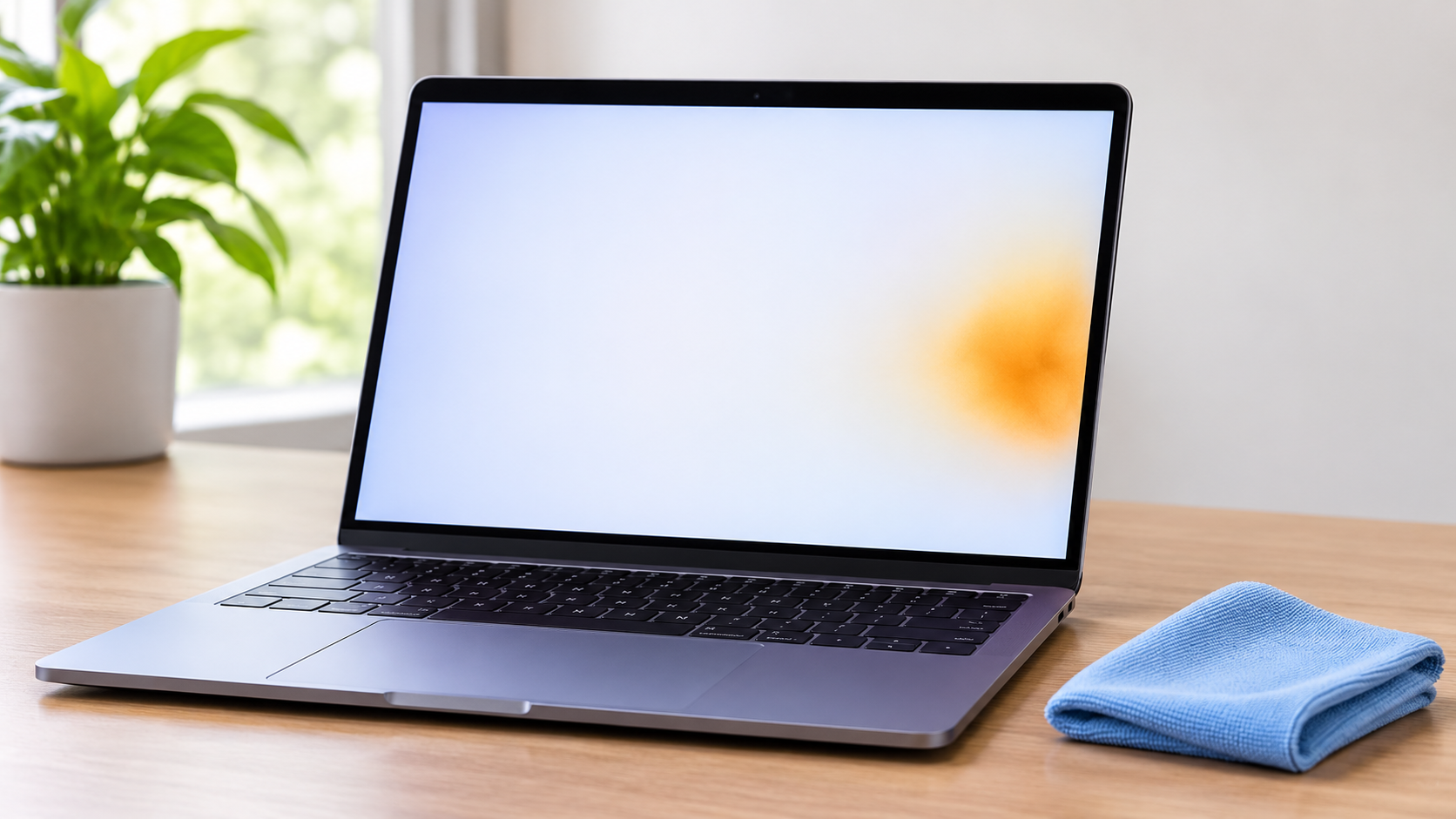
An orange smudge on a MacBook Pro screen can be oil from the keys, worn screen coating, or damage inside the panel. It can also be a harmless software dot or a color setting. This guide shows you how to tell them apart, clean the screen safely, and decide if you need a repair.
Quick Answer
- Shut down your MacBook Pro and unplug the charger.
- Wipe the screen with a soft, lint-free cloth dampened with water.
- Turn the Mac on and open a plain white page.
- If the mark is still there, stop wiping.
- Book an appointment with Apple or an Apple Authorized Service Provider.
Why finding the cause matters
- The wrong cleaner can make it worse. Harsh sprays can strip the coating and turn a small mark into a larger one.
- Some marks are not on the screen. A color setting or a menu bar dot needs no repair.
- A repair visit goes faster with evidence. Photos and test results save you time at the counter.
What does an orange smudge on a MacBook Pro screen mean?
Most orange smudges come from one of four things: oil from the keyboard, worn anti-reflective coating, pressure or heat damage inside the panel, or a software dot or color setting. Only the first can be wiped away, so the tests below matter.
| What you see | Likely cause | Wipes off? |
|---|---|---|
| A grid of faint marks that match the keys | Oil from the keyboard | Often yes |
| Dull or cloudy patches, clearer with the screen off | Worn coating | No |
| A warm cloud near one edge, clearest on a white page | Pressure or heat in the panel | No |
| A tiny orange dot in the top-right menu bar | Microphone indicator | Not a mark |
| A warm tint over the whole screen | Night Shift or True Tone | Not a mark |
Two causes can look alike, so treat this table as a guide and use the tests below to confirm.
Why is there an orange dot on my MacBook?
A small orange dot next to the Control Center icon means an app is using your microphone. It is not a mark on the glass, so no cleaning will remove it. Quit the app that is using the mic, and the dot goes away.
Apple’s menu bar guide says a green dot means a camera is in use, and a purple dot means system audio is being recorded. Only one dot shows at a time, so if the mic and camera are both in use, you only see green.
- Look at the top-right corner of the menu bar.
- Click the Control Center icon.
- Read the app name at the top of the window.
- Quit that app.
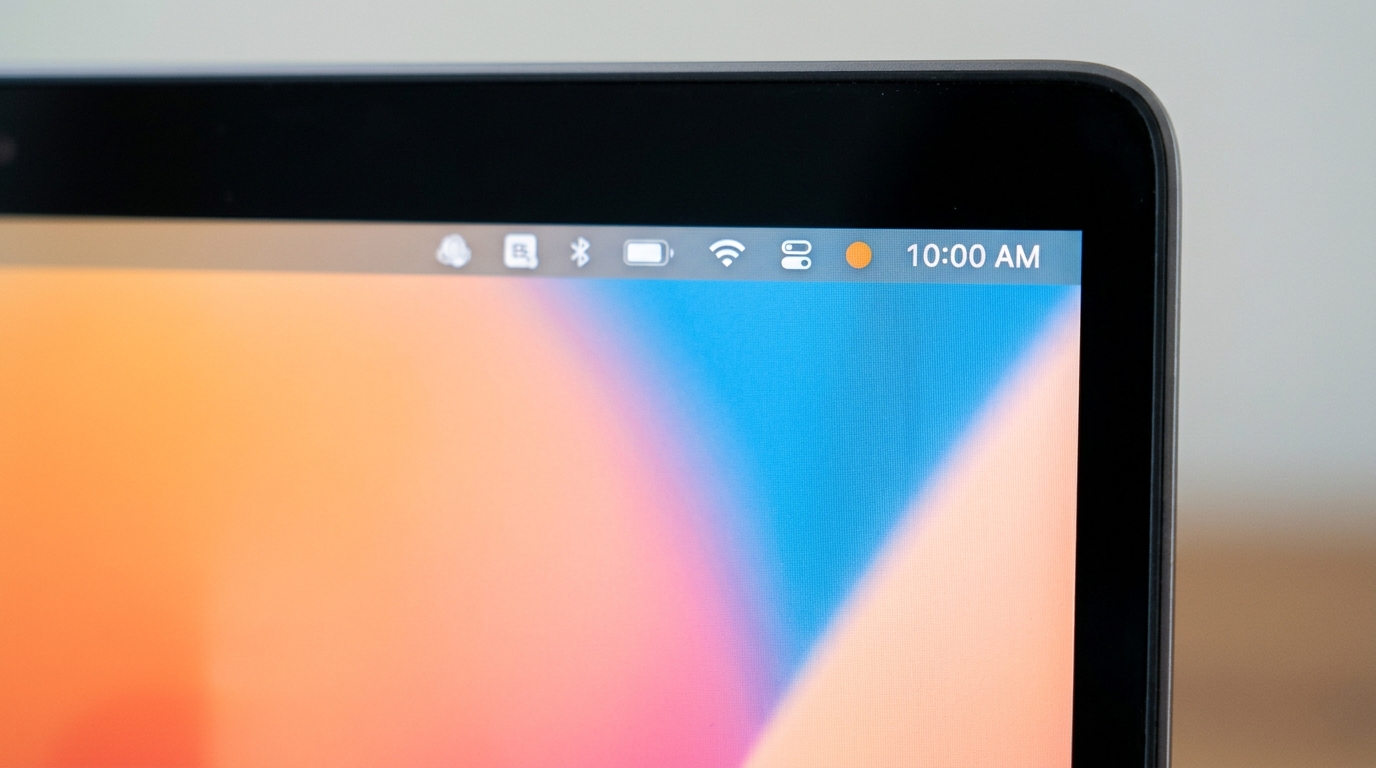
If the dot goes away, you are done. If the mark sits on the screen itself and stays put, move on.
Rule out a color setting
A warm tint can look like a stain on a pale background.
- Click the Apple menu.
- Choose System Settings.
- Click Displays.
- Turn off True Tone.
- Click Night Shift.
- Set the schedule to Off.
- Open a white page and look again.
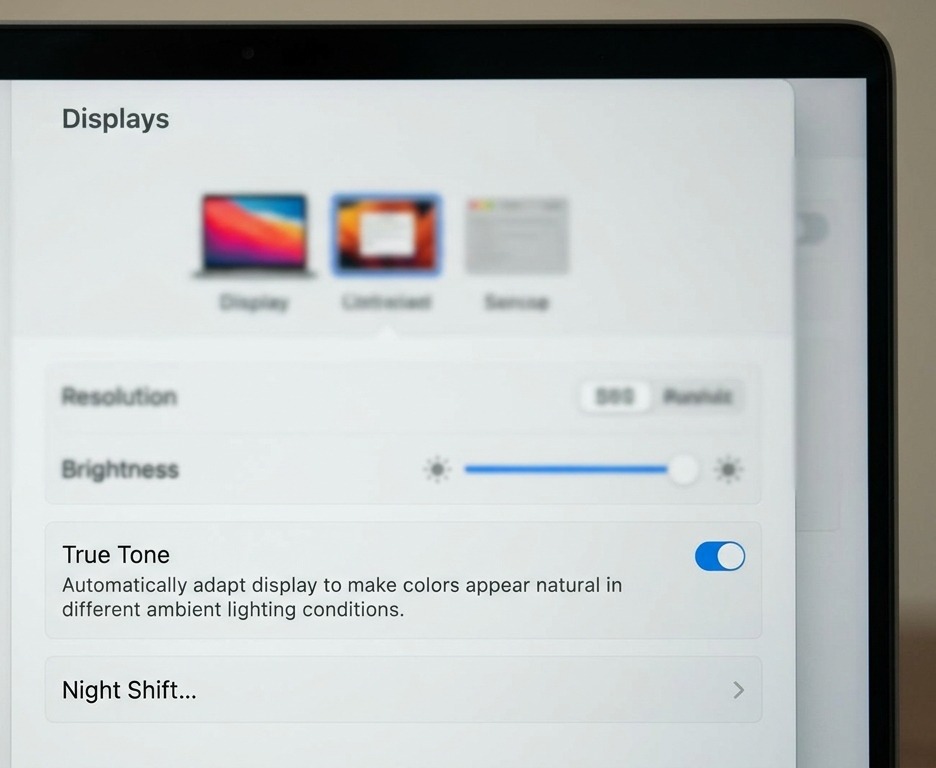
If the whole screen now looks neutral, it was a setting. If one patch stays warm, it is a real mark.
Clean the screen the way Apple says
Apple says to shut down the computer, unplug the power adapter, and wipe the screen with a soft, lint-free cloth dampened with water only. Apple’s cleaning guide also rules out window cleaners, household cleaners, aerosol sprays, solvents, ammonia, abrasives and hydrogen peroxide.
- Shut down your MacBook Pro.
- Unplug the power adapter.
- Fold a clean, soft, lint-free cloth.
- Dampen one corner with water.
- Wipe the screen gently in one direction.
- Dry it with a dry part of the cloth.
- Turn the Mac on and open a white page.

Can you use isopropyl alcohol? Yes, if you follow Apple’s US advice. You can gently wipe the display with a 70% isopropyl alcohol wipe, a 75% ethyl alcohol wipe, or a Clorox Disinfecting Wipe. Do not use anything with bleach or hydrogen peroxide. Apple’s pages differ by country, so check the page for your country. Some websites say never to use alcohol. That is stricter than what Apple says. Either way, stop after a few gentle wipes. Hard rubbing wears the coating away.
Nano-texture screens. If your MacBook Pro has a nano-texture display, clean it with a clean Apple Polishing Cloth, a microfiber cloth made for screens, or cotton and elastane fabric. For a mark that will not come off, dampen the cloth with 70% isopropyl alcohol, but only now and then. Wash the cloth by hand with dish soap and water, rinse it well, and let it air-dry for at least 24 hours. See Apple’s nano-texture cleaning page for the full steps.
If the mark is gone, clean the keys too, or the oil will mark the screen again the next time you close the lid.
Find out if the mark is on the glass or inside the panel
Four quick checks show where the problem lives.
Screenshot test
- Press Command + Shift + 3.
- Open the screenshot on a phone or another computer.
- Look for the orange mark.
If the mark is missing from the screenshot, the Mac is not drawing it. The cause is the glass, the coating or the panel. If it appears in the screenshot, go back to the color settings.
White and black page test
- Open a white page and raise the brightness.
- Tilt the screen back and forth.
- Open a black page and look again.
A patch that stays in the same place on both pages is probably in the panel or the coating. A mark that changes as you tilt looks more like surface oil.

Low-angle light test
- Turn the Mac off.
- Hold a phone light beside the screen so the beam skims across it.
- Look for dull or cloudy patches, then check if they line up with the keys or palm rest.
External display test
- Connect an external monitor.
- Check if the orange patch also appears on it.
If only the laptop shows the patch, the fault is in the laptop display. If both screens show it, look at color settings or a graphics fault.
Some Mac owners online say their patch slowly moved down and faded after they left the laptop open and flat for a day. That could point to pressure or heat in the panel, but it is only what owners report. Only a repair technician can say for sure.
Run Apple Diagnostics
Diagnostics will not fix anything, but it gives you a record to show Apple. On a Mac with Apple silicon, Apple says to hold the power button until Options appears, then hold Command-D. Apple’s list of tests includes one for display problems on laptops.
- Shut down your MacBook Pro.
- Plug in the power adapter.
- Unplug other devices.
- Press and hold the power button until Options appears.
- Press and hold Command + D.
- Follow the prompts.
- Write down any reference codes.
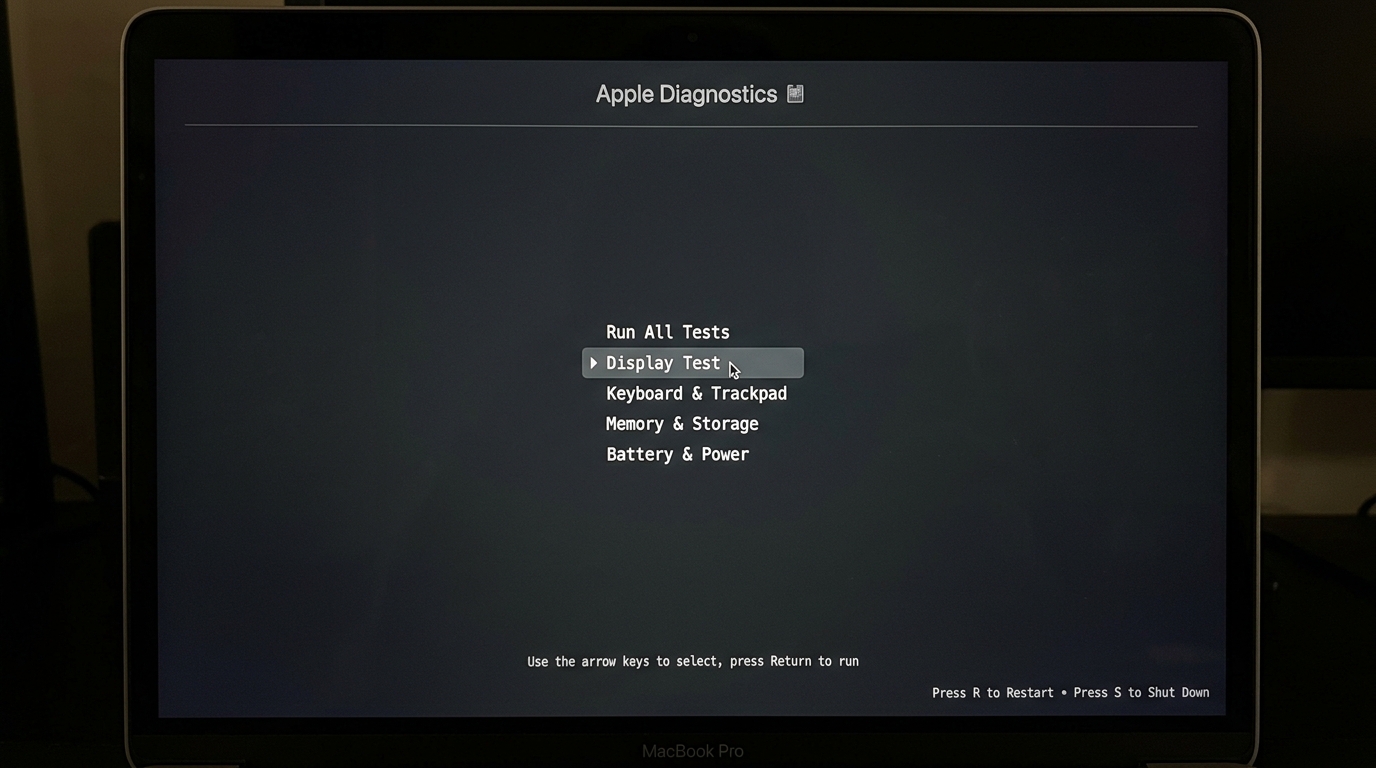
On an Intel Mac, hold D at startup, or Option-D if the D key does not work. On macOS Tahoe 26 and later, Apple says you may be asked to choose a specific diagnostic, such as the built-in display. See Apple’s diagnostics page for both chip types.
A clean result does not mean the mark is not real. It only means the test found no fault.
If it is coating wear or panel damage
When the mark is still there after cleaning and these tests, stop wiping and book a repair check. Do not press on the spot. If you also see lines, flicker, or uneven brightness, tell them when you book.
Coating wear. Mac owners online often call this problem Staingate. Apple’s old fix was a free display replacement. At the time, reports blamed pressure from the keyboard and trackpad when the lid was closed, and the wrong cleaning products. Apple never posted the program on its website. By 2019, only the 13-inch Early 2015 and 15-inch Mid 2015 models could still get a free replacement, according to MacRumors. That program has now ended, so a free fix is no longer available. Ask Apple for a repair quote with your serial number.
Before the visit
- Back up your Mac with Time Machine or iCloud.
- Photograph the mark on a white page and a black page.
- Keep the screenshot that does not show the mark.
- Open About This Mac and note the serial number.
- Remove any screen protector or keyboard cover.
- Book through Apple’s Mac repair page or an Apple Authorized Service Provider.
- Ask for the cause and a written estimate before you approve work.
I found no reliable current repair price, so use Apple’s own estimate. If the quote is close to what the laptop is worth, compare it with a replacement.
Need a screen while you wait? If your MacBook Pro has Thunderbolt ports, a Thunderbolt 4 dock lets you connect an external display and accessories with one cable. A cheap portable monitor can also work as a backup screen. If you use headphones with your Mac while you work on the backup screen, see our guides to connecting AirPods to a MacBook and iPhone and to connecting Sony Bluetooth headphones to a Mac.
Common problems and how to fix them
The smudge comes back after I clean it. Oil from the keys marks the glass each time you close the lid. Clean the keys and palm rest, remove any thick keyboard cover, and take off any camera cover before closing. Apple’s camera-cover note says it should be no thicker than a sheet of printer paper (0.1 mm). If you do this, an orange smudge on MacBook Pro screen usually will not come back.
The mark will not wipe off. If an orange smudge on MacBook Pro screen will not wipe off, it is probably worn coating or damage inside the panel, so more wiping will not help. Stop and book a repair check.
The orange patch is getting bigger. That can mean pressure, heat, or liquid damage inside the panel, or coating that is still wearing away. Back up your files now and book a repair check soon.
My whole screen turns red or orange, not just a spot. That is a different fault from a smudge. “Red screen of death” is what users call a screen that turns red. Apple does not use that term. Restart the Mac, run Apple Diagnostics, and contact Apple Support if it comes back.
I used a cleaning spray and the mark got worse. The spray may have stripped part of the coating. Stop using it and ask a repair provider if the display needs replacing.
Your next step
Do the cheap checks first: look for the menu bar dot, turn off True Tone and Night Shift, clean the screen, and take the screenshot test. If an orange smudge on MacBook Pro screen is still there after those checks, stop wiping and book a check. Take your photos and diagnostics codes with you.
